PRINTING WORKFLOW · OCTOBER 22, 2026
Coloring Page Maker: Change A4 to Letter After Generating
Select the new Print size, press Make my coloring page again, then download the newly generated file. Switching A4 to US Letter in this coloring page maker clears the old preview and download controls. Your selected source and line style stay available. The blank preview after changing paper is a prompt to generate the new size, not evidence that your photo was deleted.
Open the Coloring Page Maker · Maker Help & Guides
How do I change the paper without selecting my picture again?
- Save your current PNG or PDF if you want a copy in the old paper format.
- Choose A4 or US Letter in Print size to match the paper loaded in your printer.
- Confirm that your selected picture is still shown. The previous result and downloads will disappear.
- Press Make my coloring page, inspect the new size label, then download PNG or PDF.
- Open the downloaded file and select matching paper in your print dialog.
The downloaded first file does not change when you change the website control. A file you already saved is a separate copy. If you need both formats, keep both and use distinct filenames. For the physical paper dimensions, read A4 versus US Letter; this guide focuses on changing an already generated result.
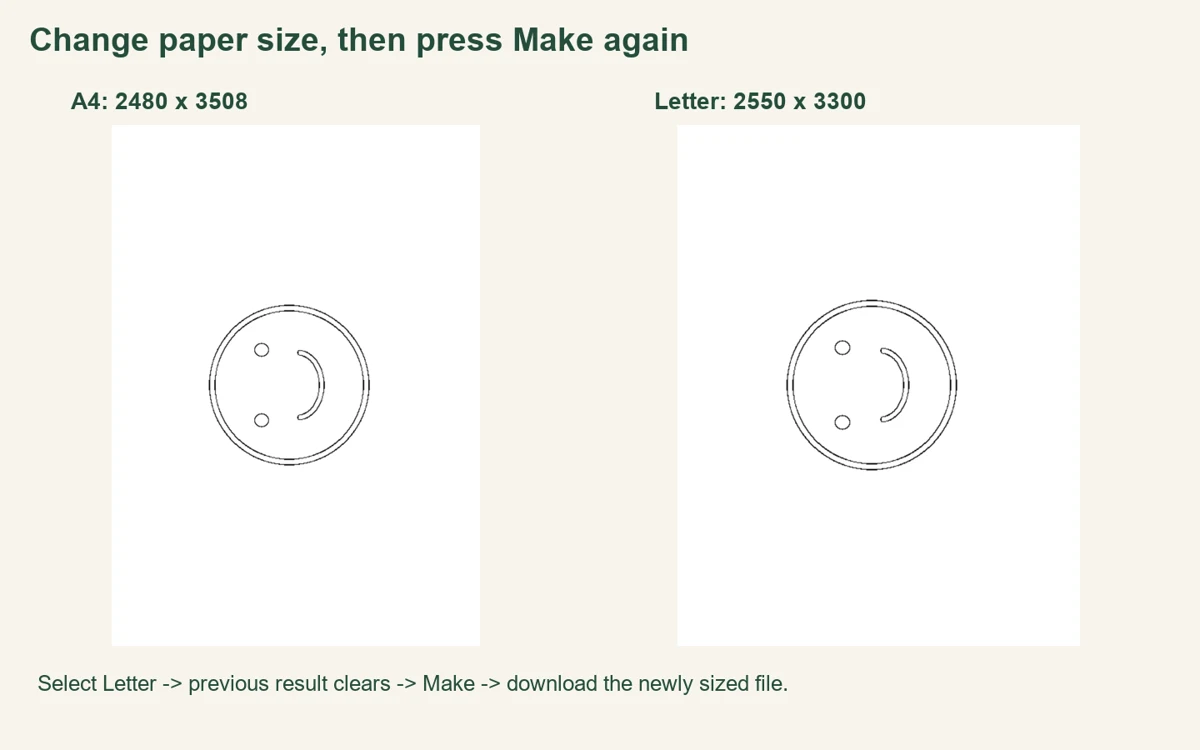
Our twelve-generation paper-switch check
On October 22, 2026, we tested the actual production Maker in Chromium at 390-pixel and 1440-pixel viewport widths. Each width used a fresh context for a 640 × 480-pixel landscape drawing and another fresh context for its 480 × 640-pixel rotated copy. The inputs are original geometric illustrations, not camera photographs. You can inspect the landscape source and portrait source. We kept Clean Outline selected in all four sequences.
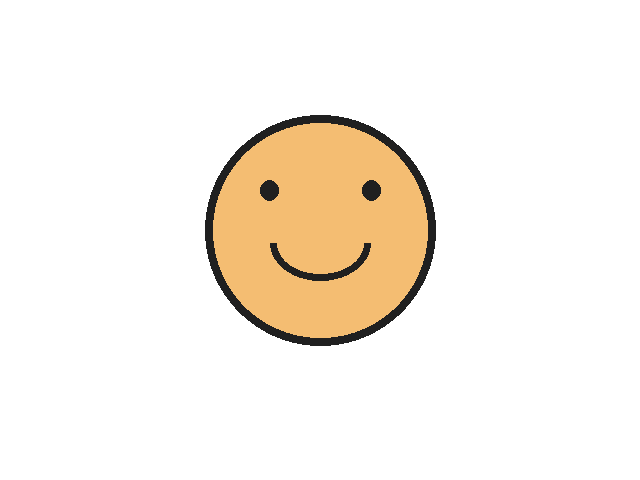
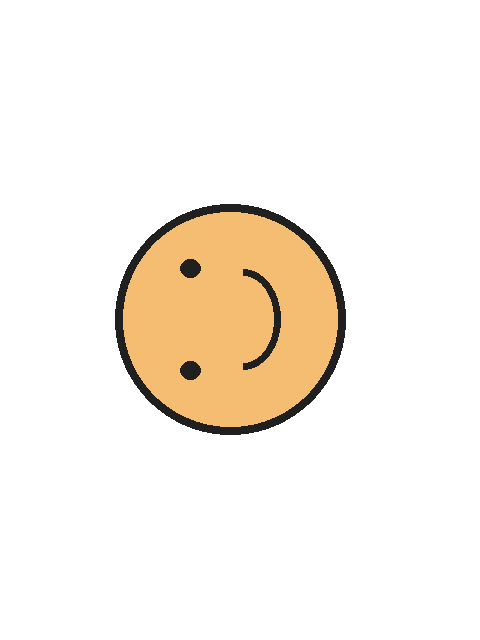
For each sequence, we selected the source once, made an A4 page, and downloaded its PNG and PDF. We then chose US Letter without touching the file chooser. Before pressing Make, we recorded the selected-source panel, filename, style, preview state, download state and Make button. The source panel remained visible with the same filename and Clean Outline label. The previous preview and download controls were hidden, while Make was available. After another Make action, we downloaded the Letter PNG and PDF.
We switched back to A4 and repeated the state check and Make action, saving a third PNG. All four sequences followed the same pattern: A4 result, change to Letter and regenerate, return to A4 and regenerate. This produced twelve PNGs and eight PDFs. The return-to-A4 PNG matched the first A4 PNG's SHA-256 hash in each sequence. Matching source-and-paper PNG hashes also agreed between the two viewport widths. Changing paper had not discarded the selected source in these runs.
| Source direction | A4 PNG | Letter PNG | Return A4 matches first |
|---|---|---|---|
| Landscape | 3508 × 2480 | 3300 × 2550 | Yes, both widths |
| Portrait | 2480 × 3508 | 2550 × 3300 | Yes, both widths |
We inspected the saved files instead of relying only on the page labels. All eight PDFs had one page, and their media boxes matched the selected format and source direction. The portrait Letter PDF measured 612 × 792 points; landscape Letter measured 792 × 612. The A4 PDFs measured 595.2 × 841.92 points in portrait and the reverse in landscape, matching this implementation's rounded 300-DPI raster dimensions. The PNGs included approximately 300-DPI metadata. That metadata does not add detail to the small input drawing.
We rendered the four distinct 390-pixel-sequence PDFs for visual inspection and checked all eight PDF page boxes. Their outlines remained centered, with the page shape changing between A4 and Letter. We did not physically print these files, test every browser, or measure a printer's non-printable margins. The recorded states and file measurements include actual dimensions, hashes and the tested application fingerprint. To repeat the check, select one source once and keep the style fixed through the A4 → Letter → A4 sequence.
Does changing paper rotate my subject?
No. The tool chooses page direction from the decoded source dimensions. A wider picture uses landscape; a taller picture uses portrait. Print size changes the paper format, not the direction of the subject. There is no separate page-orientation override in this workflow. If your source is sideways, rotate and save a copy before selecting it again; see the photo-direction guide.
Why does the new page have different borders?
The tool fits the complete traced picture inside the selected sheet's inset area. A4 and Letter have different proportions, so the unused space can change even though the selected picture has not. That does not mean part of your subject was automatically cropped. See why white space appears around a photo.
Which version should I keep?
Keep the file whose page format matches the paper you plan to use. PDF carries a defined page box; PNG is an image with pixel dimensions and resolution metadata. Either way, inspect the print preview. See PNG versus PDF and saving before refreshing.
Watch the paper-switch workflow
Watch the English guide, including the controlled export comparison. More printing answers are in Maker Help & Guides. Watch this guide on YouTube.
Sources and scope
This site's recorded browser sequences, saved files and current file-generation code support the workflow described here. Our ordered review of Mimi Panda, iColoring and Canva found generation or output-size guidance in the sections read, but those sections do not establish this site's clear-and-Make behavior. No competitor result, search-volume estimate or ranking claim is part of this check.