SAVE YOUR WORK · OCTOBER 18, 2026
Coloring Page Maker: Save Your Work Before You Refresh
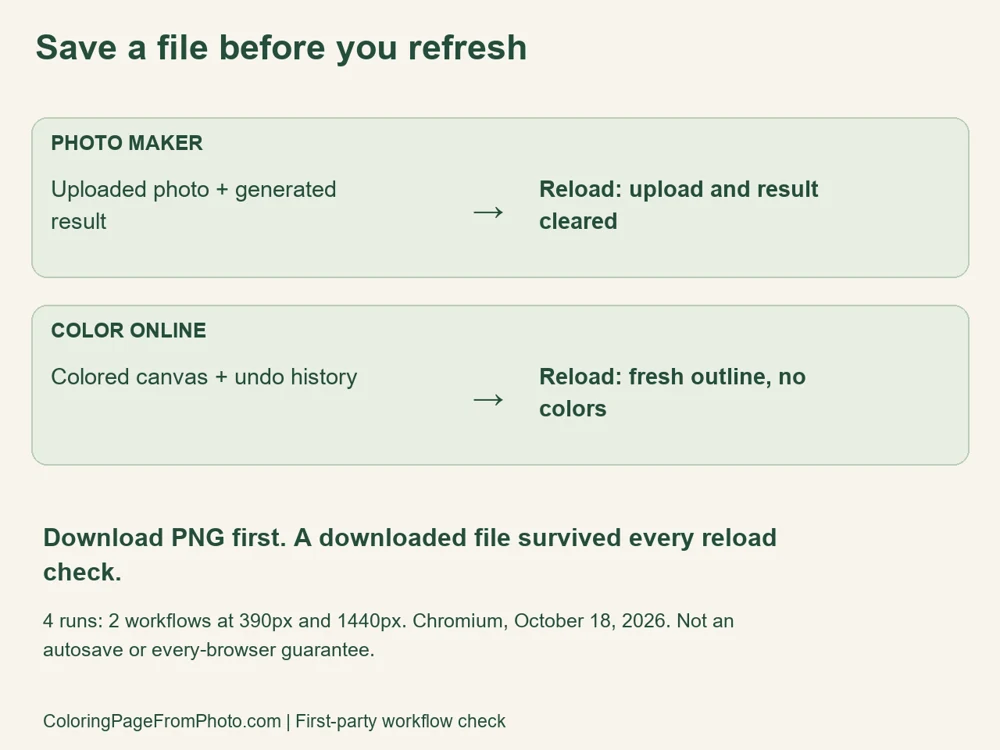
Save a file before refreshing or leaving. This site's Photo Maker does not restore your selected upload or generated result after a full page reload. The separate gallery Color Online editor also starts with fresh outlines after reload; it does not restore painted colors or Undo history.
Open the Coloring Page Maker · Maker Help & Guides
How do I keep my coloring page?
- In the Photo Maker, generate your result and use Download PNG or the PDF download. The workflow below tested PNG downloads.
- In a gallery's Color Online editor, use Save PNG after coloring. On a phone, Options contains brush size and Clear; Save PNG is above the tools.
- Check your browser's downloads or the file location you chose before closing the tab. A visible preview alone is not a saved file.
What we actually checked
We ran four full-reload checks in Chromium on October 18, 2026: two workflows at 390-pixel phone width and again at 1440-pixel desktop width. Each width started in a fresh browser context. These are browser viewport checks, not tests on two physical devices. We kept the site's production conversion and painting code unchanged.
For the Photo Maker, we selected a local copy of the site's baseball sample illustration through its file chooser. Using a local file let us distinguish an actual selected upload from the default demonstration image. We generated the coloring page with the default settings, waited for the download actions, and saved its PNG before issuing a full reload.
Before reload, both the selected-file panel and generated-result download actions were visible. After reload, both were hidden in each run. The sample demonstration could still be shown on the page; its presence did not mean the uploaded file or generated result had returned. The downloaded PNG was 1,834,898 bytes in both runs and retained the same SHA-256 hash after the page reloaded.
| Workflow | Viewport | After full reload | Downloaded PNG |
|---|---|---|---|
| Uploaded photo in Maker | 390px | Upload and result cleared | Unchanged |
| Gallery Color Online | 390px | Paint cleared; Undo disabled | Unchanged |
| Uploaded photo in Maker | 1440px | Upload and result cleared | Unchanged |
| Gallery Color Online | 1440px | Paint cleared; Undo disabled | Unchanged |
For Color Online, we opened the completed Big Petal Flower Mandala from the gallery, chose Brush, and painted at the center with the default red color. We measured the paint-layer pixel at that position. Its alpha channel was 255 before reload, meaning that the paint pixel was opaque. We saved the merged colored PNG, then reloaded the same editor URL and waited for it to finish loading.
After reload, the paint-layer alpha at that position was 0 in both viewport sizes, and Undo was disabled. The original black-and-white outline loaded again, but the added paint and the earlier action history did not. The saved colored PNG was 102,138 bytes in both runs and its hash remained unchanged. The measurement reads the transparent paint layer, not the black-and-white outline layer or the white background added during export.
This distinction explains why a file can survive while the editing session does not. Reloading the page resets the tool's in-memory state; it does not erase the PNG file already saved by the browser in this check. We verified the downloaded file separately instead of treating a successful download-button click as proof that a usable file existed.
The test covers a full page reload in the recorded Chromium environment. We did not test every browser, a phone operating system terminating a tab, Back/Forward cache behavior, device storage failures, or cloud backup services. Do not rely on another browser keeping a tab alive as an autosave feature. The implementation currently exposes file downloads, not an editable-project restore workflow.
Read the four recorded results and method. To repeat the check, use an image you can afford to reload, generate or paint a result, save its PNG, confirm the downloaded file, then reload. Avoid testing with work you have not saved.
Can I reopen the PNG and continue with the same Undo history?
A PNG is a finished image, not an editable project containing this session's tools and Undo stack. The gallery editor currently opens the selected gallery page; it does not provide an import-and-resume project button for your colored download. Keep the saved image as your finished copy. The Photo Maker and gallery editor are separate workflows; this guide does not imply a direct upload-to-online-painting handoff.
Does local processing mean autosave?
No. Processing a picture in your browser and restoring a project later are different capabilities. Our local-processing guide addresses conversion requests. This guide addresses what happened after a full reload. Save your result even if you leave the tool open between coloring sessions.
Watch the short explanation
Watch the English save-before-refresh guide. For device-specific steps, see using the Maker on a phone, or browse the completed Mandala collection. Watch this guide on YouTube.
Sources and limits
The results above are first-party browser checks of this site's current tools. In the reviewed official landing pages, Mimi Panda describes account history; iColoring describes downloadable output; and Canva describes downloading or saving work in Canva. These are their published descriptions, not tested accounts. Their workflows do not establish this site's reload behavior. We make no search-volume, indexing or ranking claim.