A REPEATABLE BROWSER TEST
Can a Coloring Page Maker Work Without Uploading Your Photo?
Yes. This coloring page maker can turn a photo into printable line art in the browser. In a live test on October 1, 2026, I selected the site's sample dog photo, generated a Clean Outline on A4, and saw a local browser preview with PNG and PDF downloads enabled. The browser recorded no POST, fetch, or XHR request during generation.
Try the browser-based coloring page maker
Watch the browser test
What happened in the test
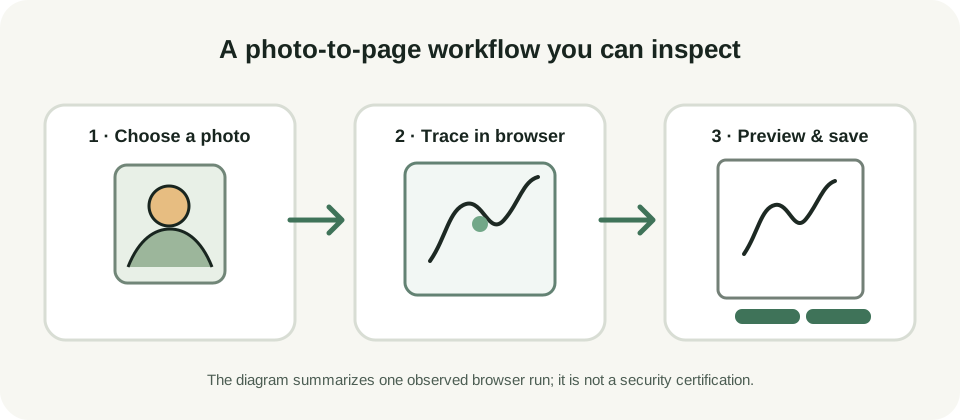
This was a hands-on run of the public tool, not a test of a mockup. I opened the homepage in Chrome, selected the site's own dog-sample-photo.png, left the line style on Clean Outline, kept A4 selected, and pressed the generate button. The preview appeared as a blob: URL on the site's origin. Its size label read A4 · 2480 × 3508 px, and both PNG and PDF download buttons became available.
I also watched the browser requests while the conversion ran. There were no POST, fetch, or XHR requests in that conversion window. That is direct evidence from this one browser run; it is more specific than repeating a privacy slogan, but it is not a full audit of every browser, extension, page request, or future release.
| Test item | Observed result | Evidence type |
|---|---|---|
| Input | Site-provided dog sample photo | Live browser run |
| Selected output | Clean Outline, A4 | Live browser controls |
| Preview | Browser-origin blob: URL; A4 label showed 2480 × 3508 px | Live page DOM |
| Downloads | PNG and PDF controls enabled after generation | Live page DOM |
| Conversion requests | No POST, fetch, or XHR request observed during the run | Browser request log; limited scope |
What “no upload” does—and does not—mean
In this run, the image-to-line-art conversion completed without a conversion request leaving the page through the request types I monitored. The preview was created in the browser, and the download controls appeared after that local result was ready. If you want to repeat the check, use a non-sensitive picture first, open the tool, select one photo, generate once, and inspect the browser's network panel for requests during conversion.
This result does not prove that every browser or device behaves identically, that the website makes no network requests for ordinary page resources, or that any online service is risk-free. It also does not cover browser extensions, operating-system backups, or what happens after a user saves a downloaded file. The test only describes the conversion run and browser session recorded above.
How the listed tools describe their photo workflow
The three reference pages describe upload-led flows: Canva's AI coloring page generator tells visitors to upload a photo before generating and previewing; iColoring AI's homepage presents photo upload as one way to create a page; and Mimi Panda's photo converter shows an upload control and lists accepted formats. Those pages describe their visitor steps. I did not inspect their server implementations, so this page makes no claim about what their backends store or retain.
The practical difference you can verify here is the conversion path this site exposes: select one photo, run the browser tool, inspect the preview, then download the result. The test log above records the actual steps and limits, so you can judge that claim for yourself.
Repeat the test with your own picture
- Open the coloring page maker and choose one JPG, PNG, or WEBP image.
- Compare the five style previews using the same photo; changing styles is not a way to remove a busy background.
- Generate the page, inspect the subject outline and background marks, then download PNG or PDF if the result suits your print.
- If you want to verify the no-upload behavior yourself, watch the browser network panel during conversion. A different browser, device, or release may behave differently.
For the site's supported inputs and print options, see the photo coloring page maker guide. For a real input-and-output example, visit the photo-to-coloring-page examples.