PRINTING FILE CHECK · OCTOBER 6, 2026
Coloring Page Maker: PNG or PDF for Printing?
Choose PDF for a ready-sized printable page, or PNG when you want an image to edit or place in another document. Both downloads come from the same coloring page. Switching formats does not simplify the drawing. We inspected a real pair of this site's downloads to show what changes inside the files.
Make a coloring page from your photo →
What the two downloads contain
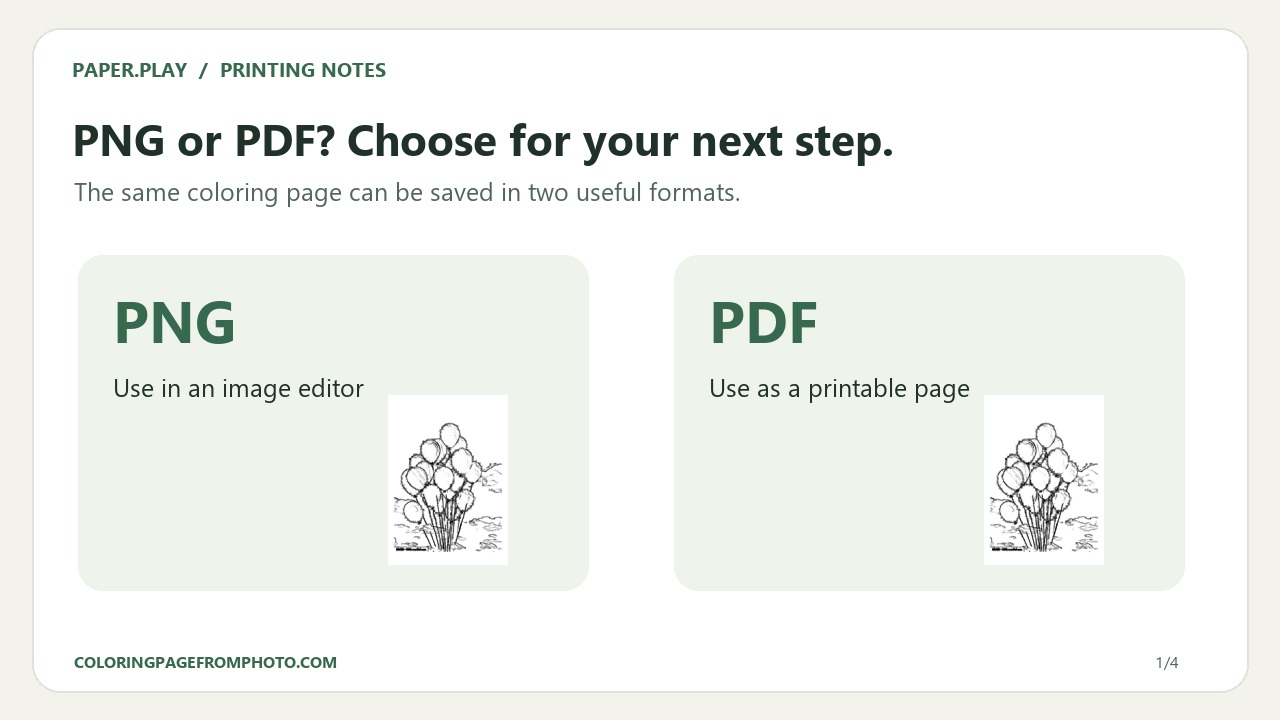
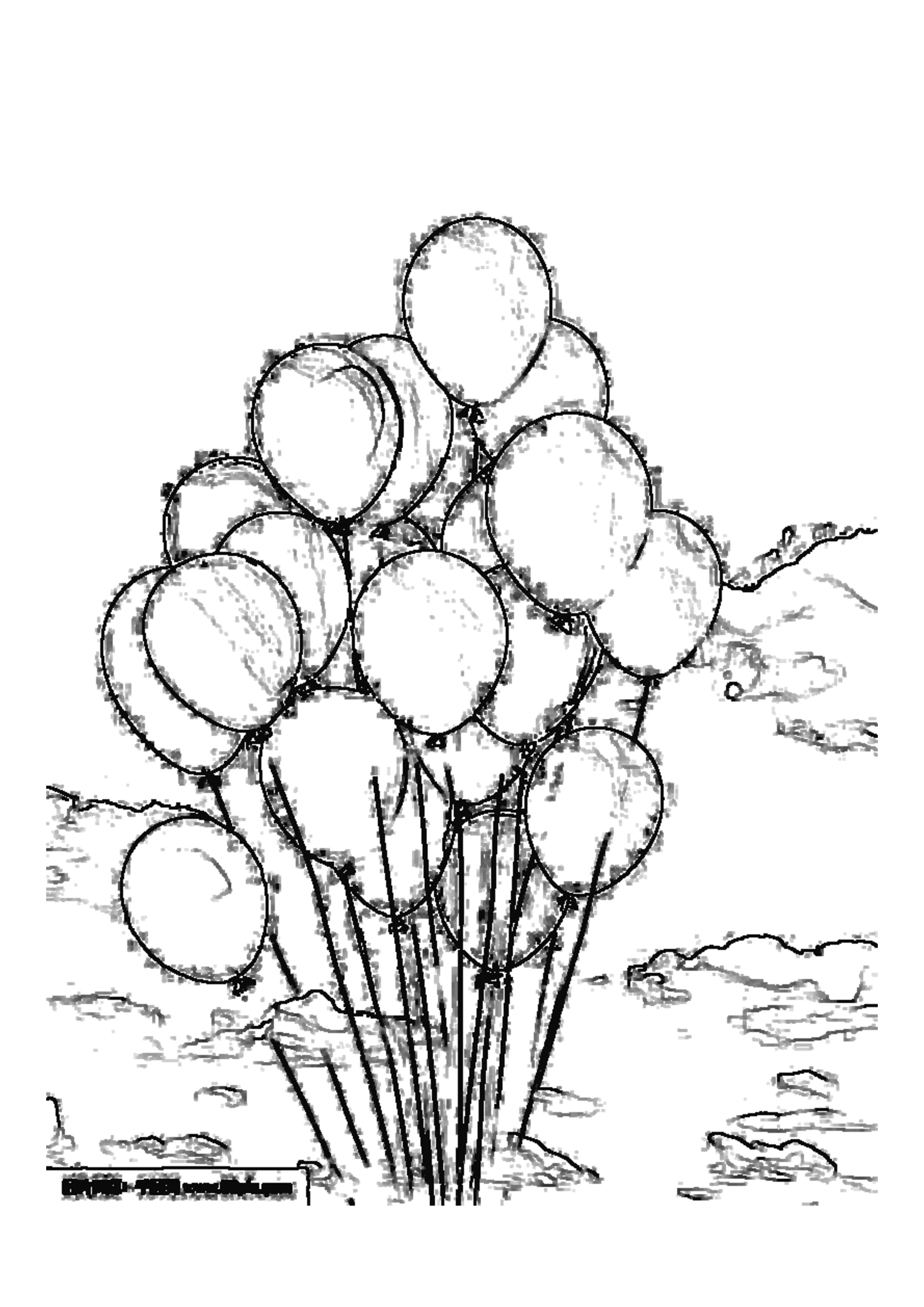
For this check, we reopened an archived pair of Bold Comic downloads created by this site's public photo tool on September 26, 2026. We measured their file metadata again on October 6. The two files came from the same generated balloon picture. We also checked that the current public export code matches the local version used for this review. This is a file inspection, not a new conversion or a test of a physical printer.
| Measured property | PNG download | PDF download |
|---|---|---|
| File size in this pair | 2,415,060 bytes | 779,331 bytes |
| Picture dimensions | 2,480 × 3,508 pixels | Embedded picture: 2,480 × 3,508 pixels |
| Page / density information | Density tag: approximately 300 DPI | One page: 595.20 × 841.92 points |
| How the outline is stored | PNG image | JPEG image placed on a PDF page |
The PNG's density tag reads 299.9994 DPI when decoded by our inspection software. That tiny difference from 300 is metadata rounding, rather than an extra level of drawing detail. The PDF page dimensions convert to about 209.97 × 297.01 mm: points × 25.4 ÷ 72. These measurements follow the tool's pixel-rounded A4 export. Neither value measures the resolution of the original uploaded photograph.
You can inspect the same evidence files: measured PNG and measured PDF. They preserve the actual output, including background marks. These are workflow samples, not a claim that every photo will produce ideal coloring artwork.
Why the PDF is smaller in this sample
The PDF is smaller than the PNG in this particular pair, even though its embedded picture has the same pixel dimensions. The current tool exports the canvas as PNG for the image download and as JPEG, with a quality setting of 0.94, inside the PDF. The inspected PDF contains one image with a JPEG compression filter. That is a difference in how the picture is stored; it is not evidence that the smaller file has a cleaner outline.
PNG uses lossless compression, as described in the W3C PNG specification. JPEG compression may change fine pixels around edges. The measured file sizes above apply only to this balloon example. Another photo, line style, or amount of detail can produce different sizes.
Does downloading a PDF turn the outline into vectors?
No, not in this tool. The inspected PDF holds a raster picture, and the current exporter places a JPEG image on the page. Enlarging that PDF does not turn the lines into editable paths or recover details absent from the photo. Choose the PNG if your next step requires an image file, but do not expect either export to become a hand-drawn vector illustration.
A short printing workflow
- Select A4 or US Letter in the coloring page maker before generating the page.
- Generate the outline and inspect the subject. Change the photo or line style if the drawing is too busy; a different file format will not remove those marks.
- Save the PDF, open it, and select the matching paper in the print dialog. Check the preview for clipped edges and the printer's margin settings.
- Print one sheet before making a stack. If you need to place the drawing in a worksheet or image editor, keep the PNG as well.
For paper selection, see A4 vs US Letter. For framing the subject, use the same-photo crop test. This guide focuses on the two downloadable file types, so it does not certify printer settings, physical print quality, or every device's download behavior.