SAME-PHOTO BROWSER TEST · OCTOBER 2, 2026
Coloring Page Maker Photo Crop Test: Make the Main Subject Larger
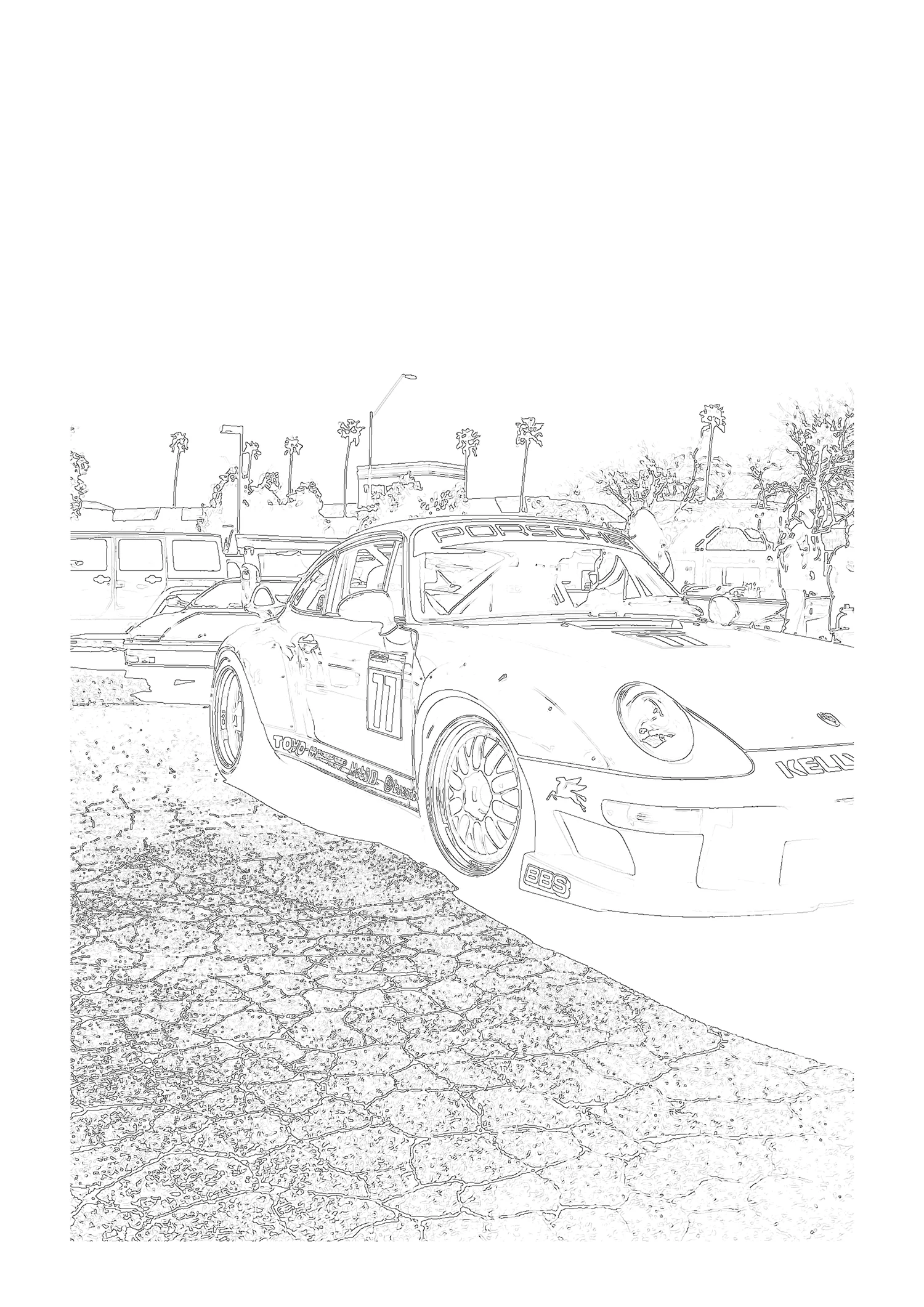
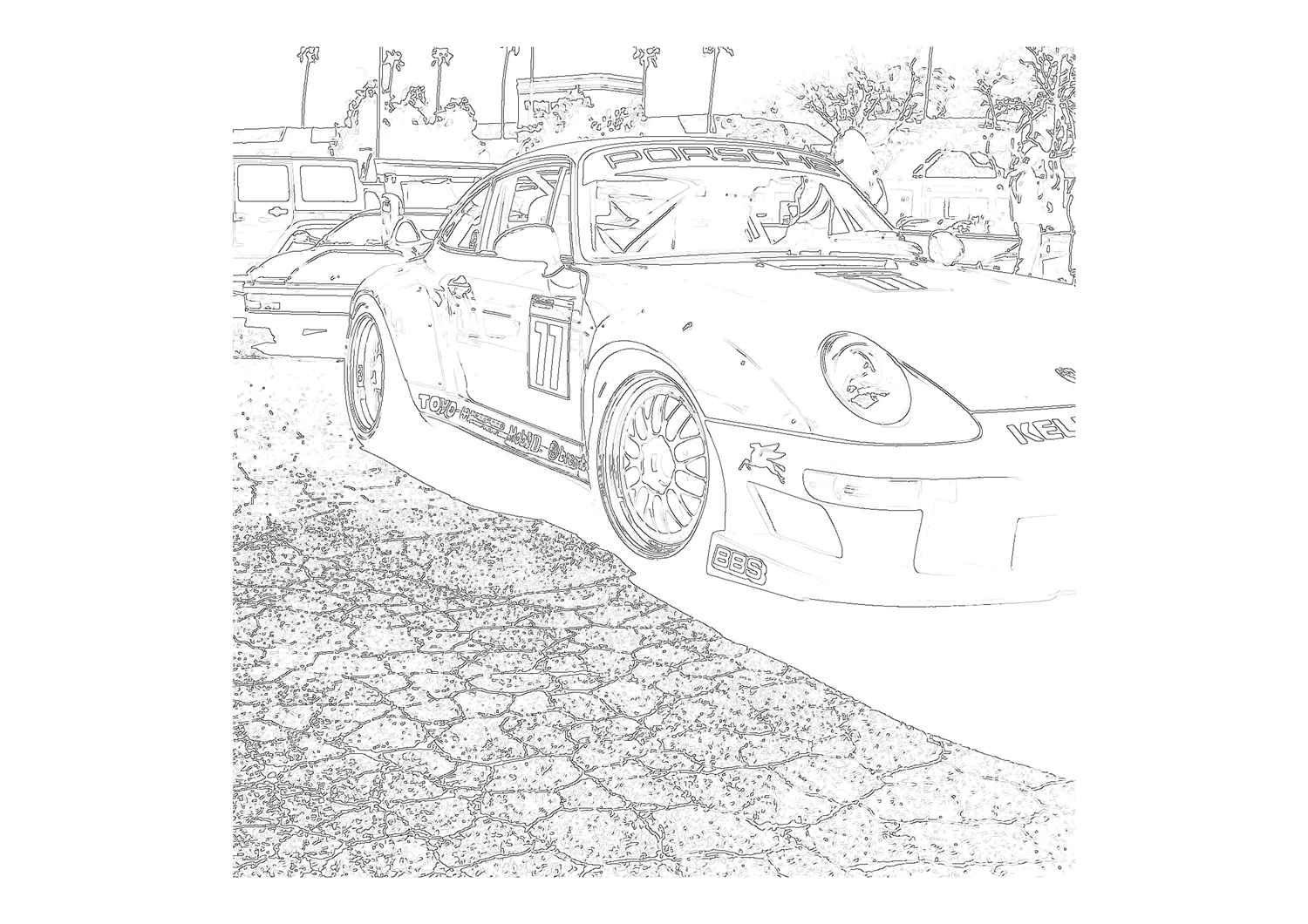
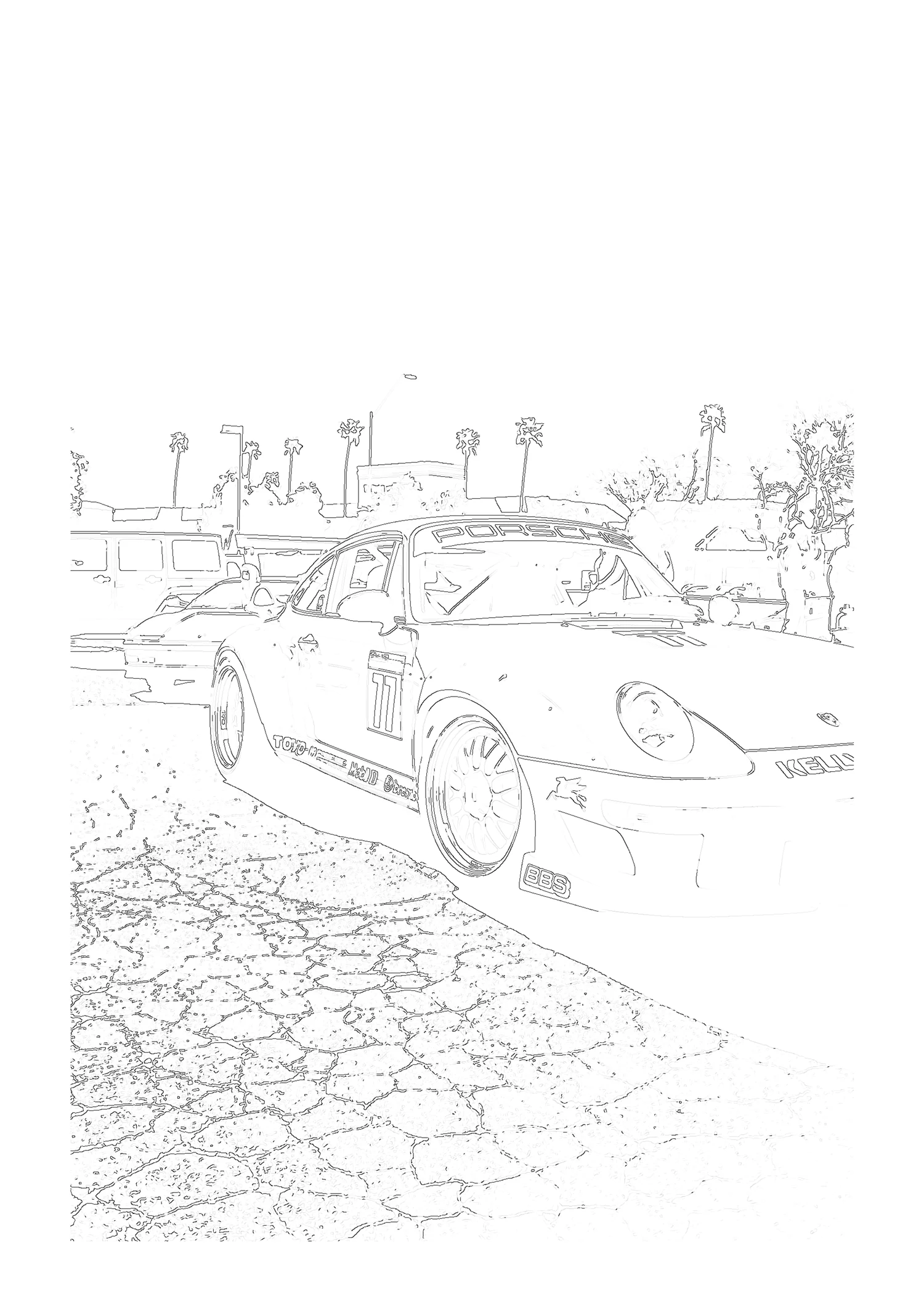
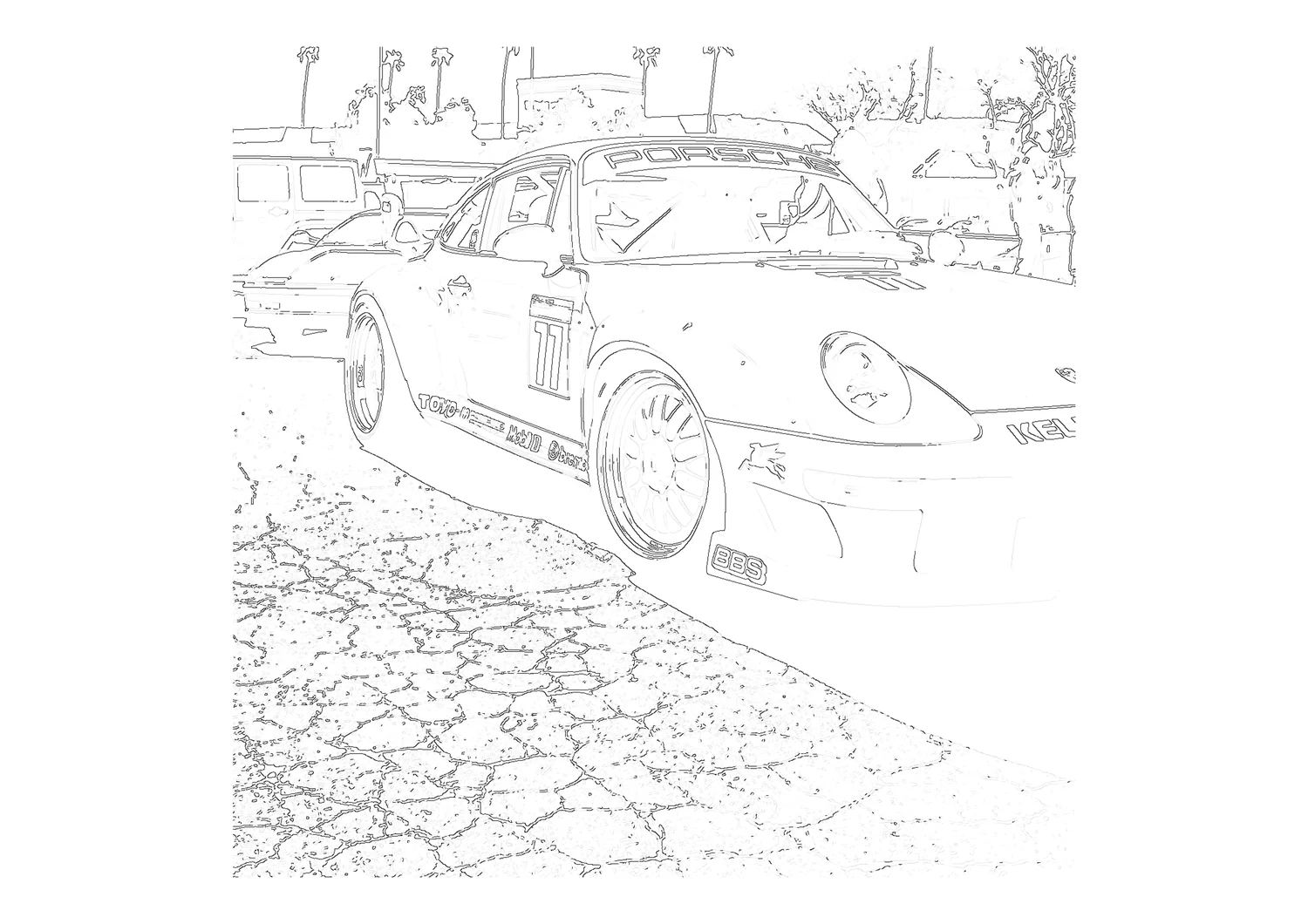
Crop a photo before using a coloring page maker when the subject is small but fully inside the frame. It can make the subject occupy more of the printable sheet. It cannot erase background detail that remains in the crop, or restore a bumper or wheel already cut off by the original photo. In our same-photo vehicle test, the full image produced an A4 portrait output (2480 × 3508 px), while the tighter crop produced A4 landscape output (3508 × 2480 px); pavement and nearby cars still appeared in both.
Try the photo coloring page maker
Video walkthrough
Watch this crop test on YouTube
Open the standalone video page.
What changed in the test
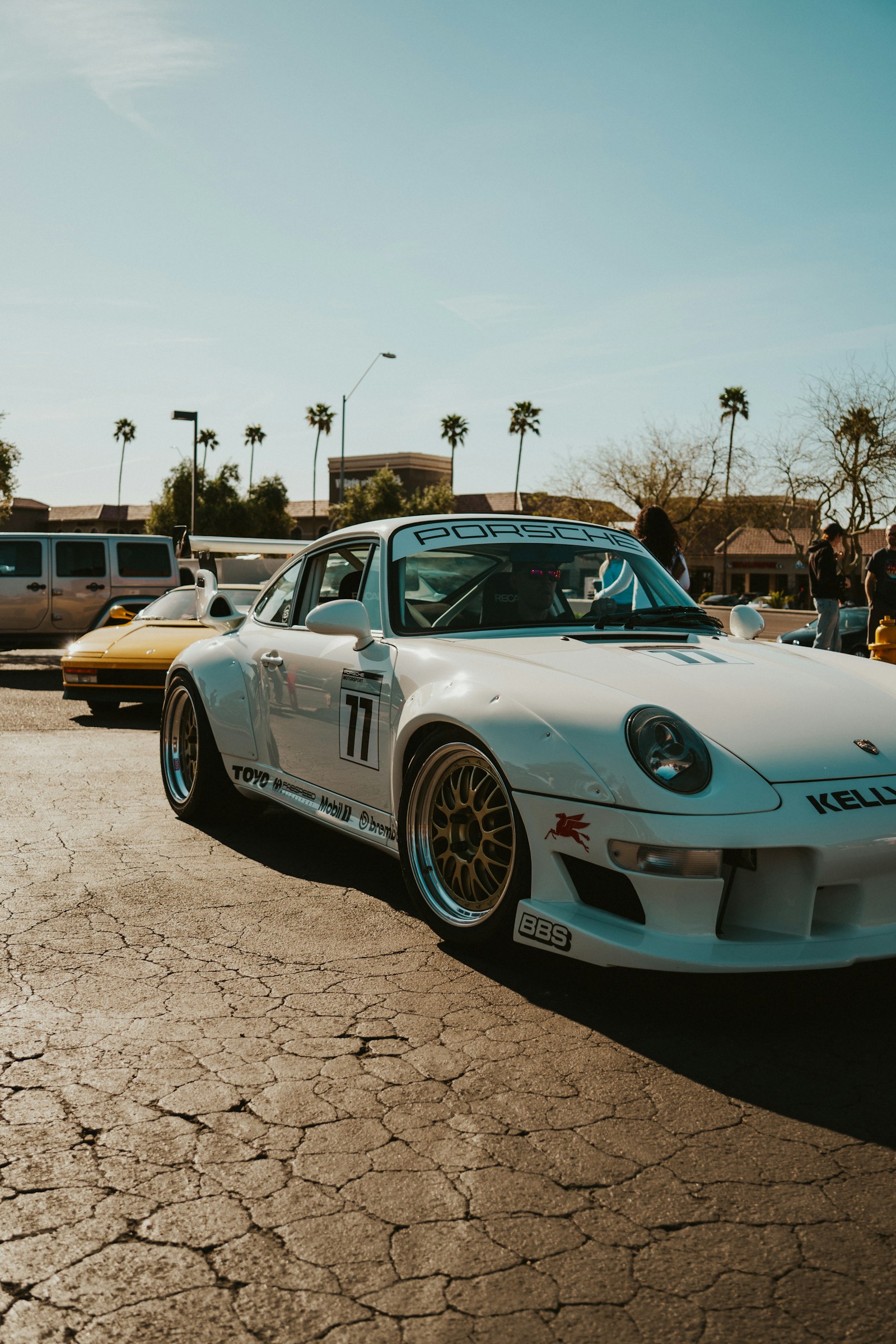
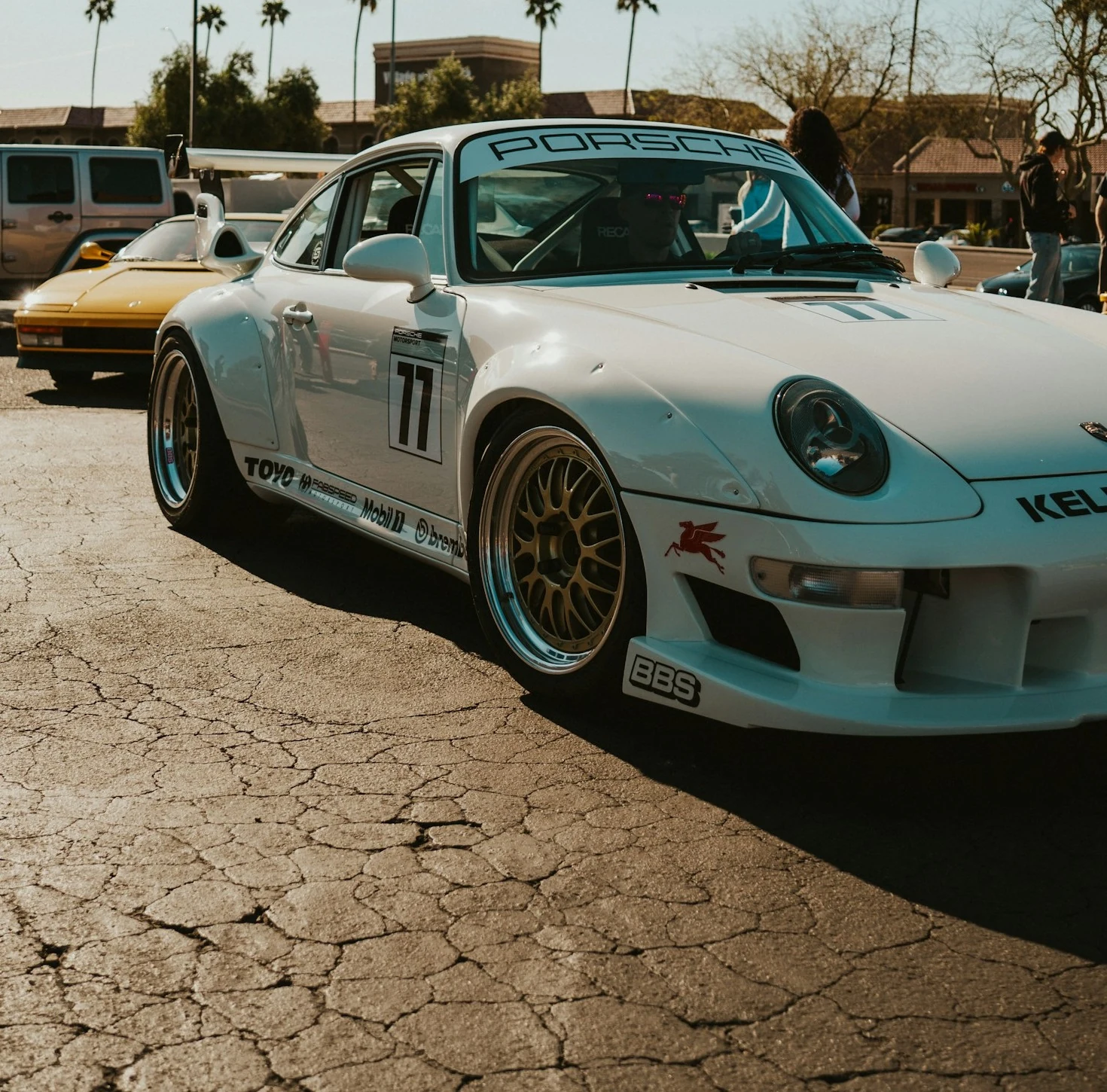
I used the vehicle photo already shown on this site as the source. The original JPEG is 1600 × 2400 pixels. I made one local crop from x=90 to 1560 and y=760 to 2210, producing a 1470 × 1450 image. I uploaded the full photo and that crop separately, then generated Clean Outline and Simplified style for each. I kept the tool and source scene the same; only the framing and the selected line style changed.
Inputs: full frame and tighter crop
The actual line-art results
The crop made the car appear larger on the page, and the tool selected landscape orientation for that nearly square input. It did not make the scene clean: the remaining pavement texture and neighboring cars were still traced. The Simplified result changed the line treatment, but this one test still showed background marks. A crop helps with framing; it is not an object remover.
How to get a cleaner printable page
- Check the original frame first. Make sure the complete subject is present. Cropping cannot bring back a cut-off front bumper, wheel, or roof.
- Trim empty space, not useful edges. Crop unused sky or floor if the subject looks small, but leave a little breathing room around it.
- Remove clutter before upload when possible. If people, cars, or plants are still inside the crop, their visible edges can still become lines. Choose a simpler source photo or use a photo editor to clean the background before conversion.
- Preview more than one style. Compare Clean Outline and Simplified style. In this one sample, neither style removed every background texture.
- Check the page orientation. In this test, the full portrait source yielded portrait A4; the near-square crop yielded landscape A4. Confirm that the preview still frames the subject the way you want before downloading.
How this differs from the generator pages I reviewed
The current Canva AI Coloring Page Generator page describes photo upload, style and aspect-ratio choices, editing, and PNG/PDF export. iColoring AI presents photo-to-page and text-to-page routes, style choices, a colorizer, and a printable page gallery. Mimi Panda's photo converter presents an upload-to-outline workflow with download and print. Those are descriptions on the three pages reviewed on October 2, 2026; this page adds a controlled comparison from one already-published source photo, with the original dimensions, crop coordinates, selected styles, and observed output labels.
What this test does and does not show
This is a first-party demonstration of one vehicle photo through this site's browser tool. It shows how the actual framing and two style selections affected these four outputs. It is not a broad accuracy benchmark, and one photo cannot predict every subject or lighting condition. The source and generated examples are available above so the result can be inspected directly.
For guidance on photo sharpness and contrast, see Photo to Line Art. For the no-upload browser test, read Can a Coloring Page Maker Work Without Uploading Your Photo?. To see another real vehicle example, visit Vehicle Photo Coloring Page.
Reproduction note: generated in the site's local browser tool on October 2, 2026. Both inputs were processed as separate uploads; the four output images above are the downloaded tool outputs converted to WebP for page display. Source portrait output was A4 2480 × 3508 px; crop output was A4 3508 × 2480 px.