A REAL VEHICLE PHOTO TEST
Vehicle Coloring Page from a Photo: What the Preview Shows
Yes—you can turn a vehicle photo into a printable coloring page. Use a sharp image, choose a line style, and inspect the preview before downloading. In our same-photo test, the car’s outline stayed recognizable, but the sunny ground and busy parking-lot background also became lines. The Simplified preview did not isolate the car; Bold Comic made the shadows much darker. Start with a tighter, evenly lit photo if you want the vehicle to dominate the page.
Try your vehicle photo in the coloring page maker
What one photo looked like in three styles
We uploaded the same portrait photo once, kept its original framing, and generated A4 portrait previews with Clean Outline, Simplified, and Bold Comic. Processing ran in this page’s browser tool. These are the actual previews from that run, not illustrations of an expected result.
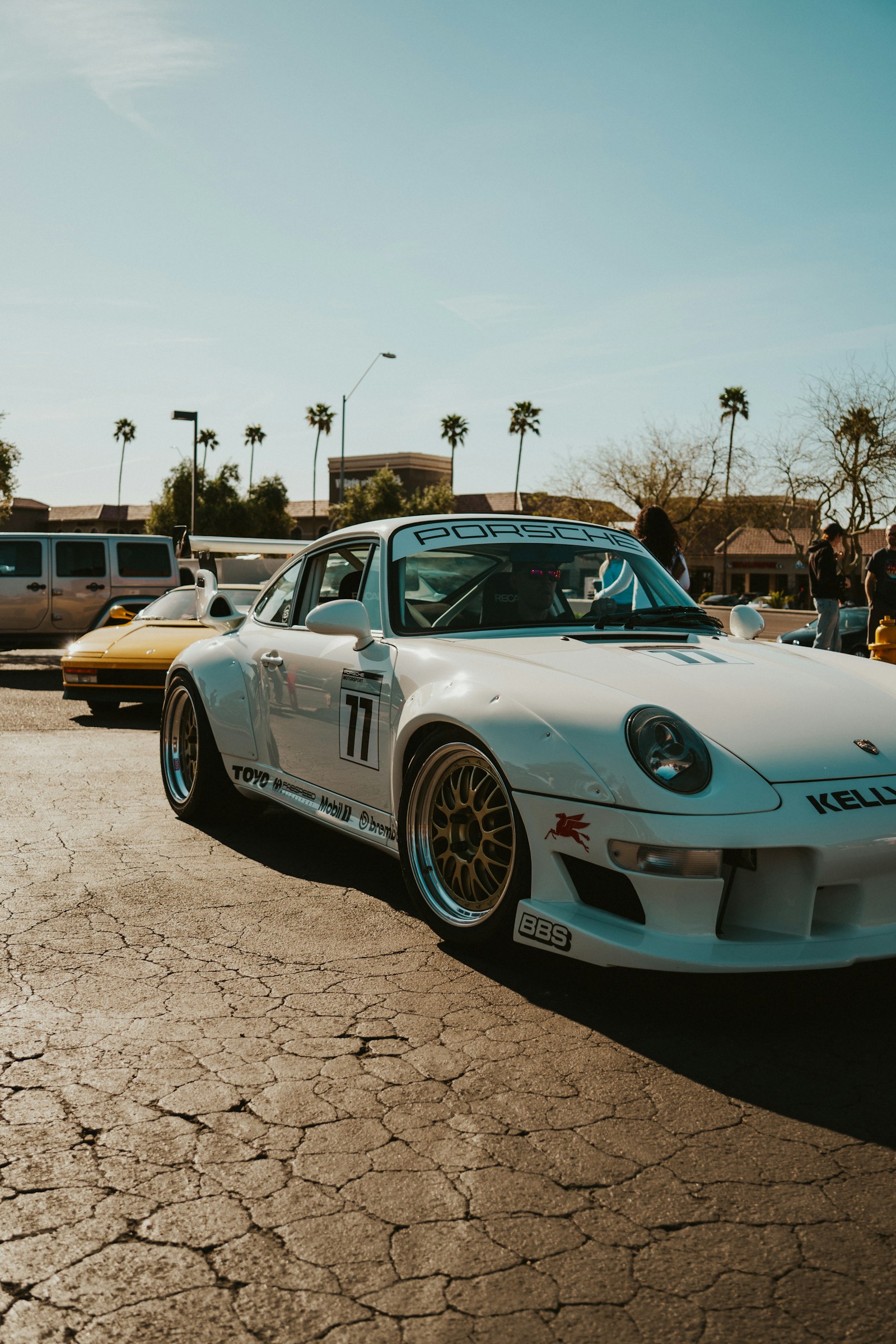
Its portrait crop leaves a large sky area above a detailed parking lot and road. The three outputs below use this exact same input and framing.Photo by Nicholas Fuentes, used under the Unsplash License.
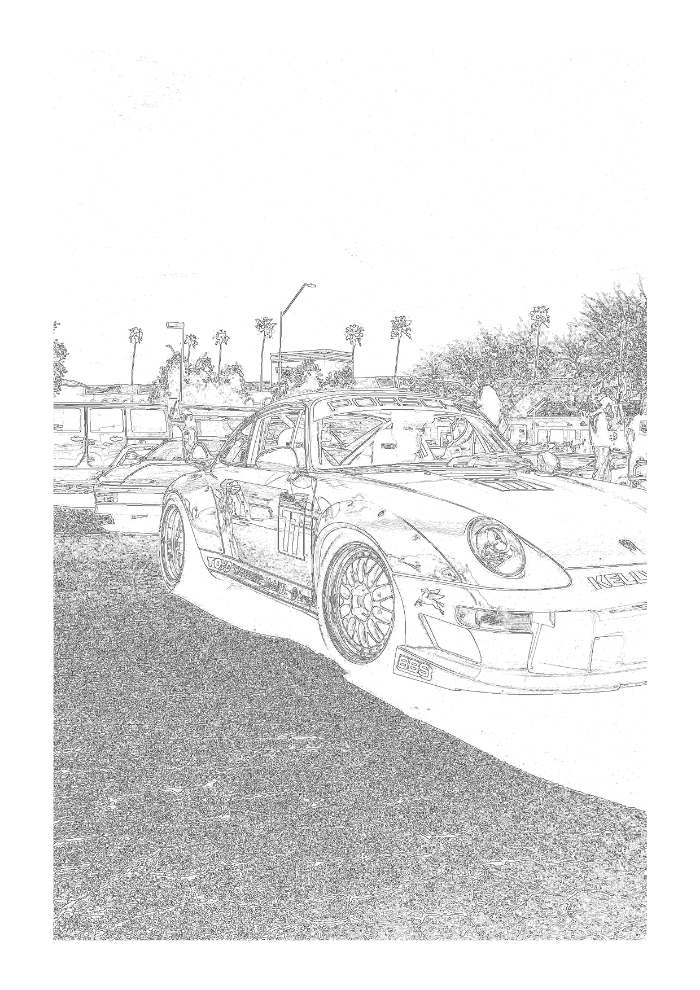
The body and wheel contours remain visible. Fine surroundings and road texture remain too.Same source image and paper size as the other previews.
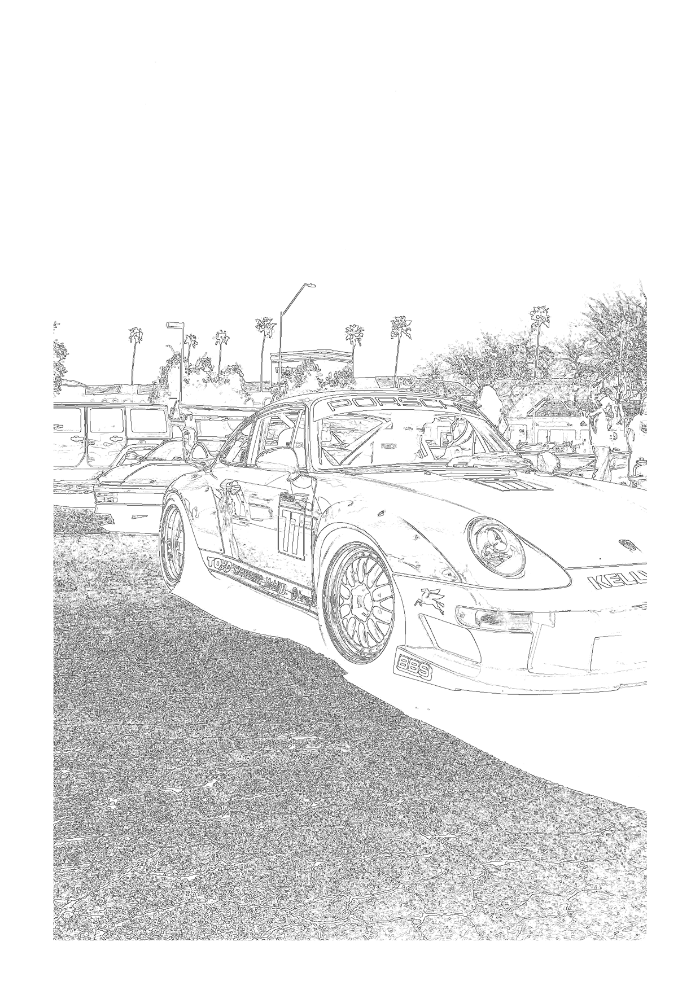
At preview size, this looked close to Clean Outline in this particular photo. It did not remove the background or separate the car from nearby objects.A style change is not a subject-selection tool.
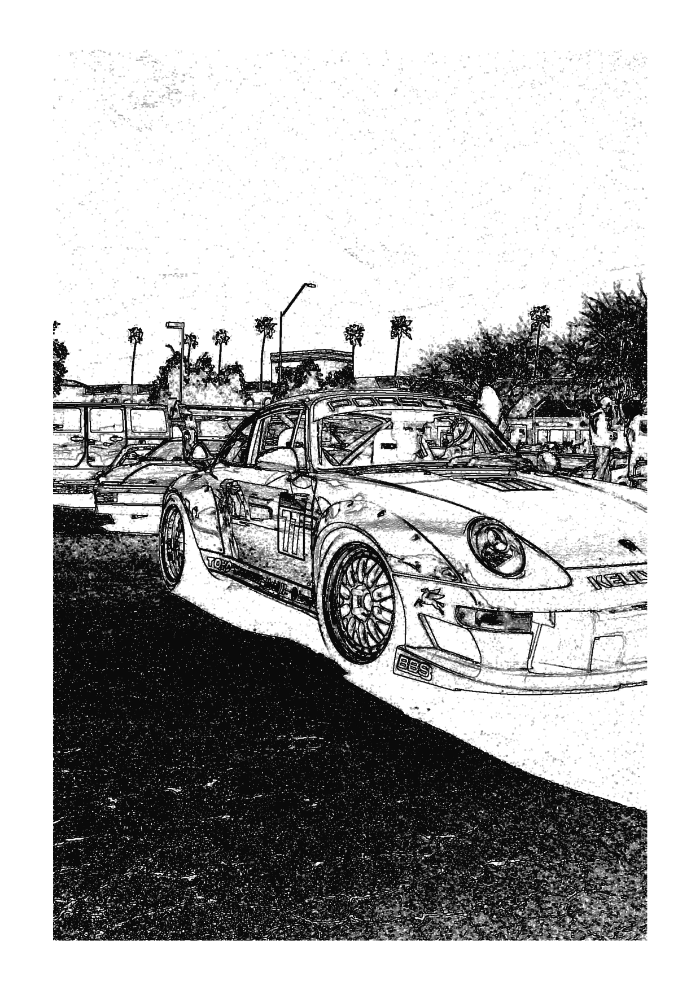
Contours became heavier, while the large ground shadow turned into a dense dark area that would compete with the vehicle when coloring.Inspect dark regions before printing.
Why the background can take over
This source had a large bright sky, several objects around the car, strong sunlight, and a broad shadow on textured pavement. The tool traces visible edges across the supplied picture; it does not select a vehicle, erase the scenery, or rebuild hidden detail. As a result, the open sky used page space while the busy lower half collected many small marks. A stronger line preset changed their weight, but did not simplify the scene.
That is the useful lesson from this test: a vehicle can remain recognizable while the page still feels crowded. The wheels, windows, lights, and body outline were present, yet fine pavement texture and nearby cars created extra places to color. The most effective improvement starts with the source composition, not with repeatedly switching styles.
Choose and prepare a vehicle photo
- Make the vehicle large in the frame. Before uploading, crop the original in your usual photo editor so less sky and pavement surround the subject. This site’s tool does not include a crop or background-removal control.
- Prefer soft, even light. Hard sunlight can create deep shadows; in this sample, the shadow became the darkest and busiest part of the Bold Comic result.
- Separate nearby shapes. Leave visible space between the vehicle and other cars, people, poles, or scenery when possible. Touching boundaries can turn into merged outlines.
- Compare previews at the subject and the background. Try Clean Outline and Simplified first, then inspect wheels, windows, and the ground. Use Bold Comic only if its darker regions remain easy to color.
- Print only after checking the full page. The tool fits the whole photo into the selected paper size; it does not automatically zoom in on the vehicle.
Photo and test-image source
The test photo is by Nicholas Fuentes, originally published on Unsplash, and used under the Unsplash License. The three line-art previews above were generated from that same photo with this site’s browser tool. The photo credit does not imply endorsement by the photographer, the vehicle maker, or any other party.
Vehicle photo coloring page questions
How do I make a car coloring page from my own photo?
Choose a sharp photo where the vehicle is large and visually separate from its background. Upload it to the tool, compare the style previews, and download only when the wheels, windows, and surrounding edges look clear enough to color.
Which line style works best for a vehicle photo?
There is no universal best setting. In our one test, Clean Outline and Simplified looked close at preview size, while Bold Comic made the pavement shadow much darker. Check your own preview because lighting and background detail vary.
Can I remove the background before making a vehicle coloring page?
This tool does not remove backgrounds or isolate a subject. Crop the original photo in an image editor before uploading, or choose a picture with a simpler background.
Why does my vehicle coloring page have so many dark marks?
Strong shadows, pavement texture, reflections, and nearby objects all contain visible edges that may be traced. Try a more evenly lit photo with fewer surrounding details; changing to a heavier line style will not remove them.
For the complete upload and print limits, read the photo coloring page maker guide. For other style comparisons, see the five-style guide.