PHOTO STYLE GUIDE
Coloring Sheet Maker: Which Photo Style Should You Choose?
Start with Clean Outline for a clear, simple photo. Try Simplified when the background is busy, Detailed when small edges matter, Bold Comic for heavier ink, and Pencil Sketch for softer strokes. Preview the same photo in the tool before downloading; the best choice depends on which outlines stay readable in your picture.
Compare all five styles with your photo
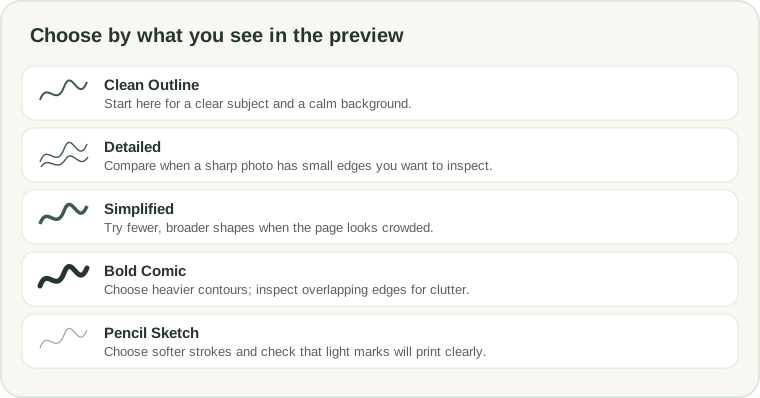
A quick way to choose
- Clean Outline: a starting point for photos with one distinct subject and a relatively calm background.
- Simplified: compare it when many background marks compete with the subject; it keeps fewer, broader shapes.
- Detailed: compare it when the source is sharp and you want to inspect more fine edges. A busy photo may also gain extra visual texture.
- Bold Comic: compare it when you prefer darker, thicker contours. Closely spaced edges can become visually heavier.
- Pencil Sketch: choose it for a finer, softer line appearance. Check that the lightest marks remain visible at your intended print size.
What a same-photo comparison can tell you
In a local check on September 26, 2026, I processed one balloon photo with both Clean Outline and Bold Comic in the browser tool. The main balloon contours remained visible in both exports; the comic version made overlapping strings, knots, and background edges darker and more crowded. That comparison is a practical reminder: heavier lines can make a subject stand out, but they do not remove clutter from the original photo.
The test used the same input and the same A4 output path so the visible difference came from the selected style. It was a visual check of those two results, not a universal ranking of styles or a claim that every photo will behave the same way. The photo itself is not published on this page.
For your own picture, compare previews before generating the final download. Look at three things: whether the subject's outer contour is continuous, whether adjacent objects remain separated, and whether background texture takes attention away from the subject. If all five previews miss an edge, start with a sharper, better-lit photo instead of expecting a style to recreate missing information.
Choose a source photo before changing styles
A coloring sheet maker can trace only boundaries that are visible in the source. Use a focused image with enough light and a clear separation between the subject and nearby objects. A plain background gives the edge detector fewer unrelated shapes to show. When two objects touch or overlap, their outlines may merge; when the photo is blurred, a faint edge may be absent from every preview.
- Upload one JPG, JPEG, PNG, or WEBP photo.
- Keep the same photo selected while comparing the five style previews.
- Zoom in on the subject boundary and any small feature you want to color.
- Choose A4 or US Letter, then download PNG or PDF only after the preview looks usable.
What this coloring sheet maker supports
- Input: one JPG, JPEG, PNG, or WEBP image per run.
- Limits: 15 MB, 30 megapixels, and 6,000 pixels maximum on the longest side.
- Styles: Clean Outline, Detailed, Simplified, Bold Comic, and Pencil Sketch.
- Downloads: PNG or PDF at 300 DPI, in A4 or US Letter portrait or landscape.
- Privacy: the photo is processed in your browser and is not uploaded by this tool. No account is required.
Coloring sheet maker questions
Which coloring sheet maker style is easiest to color?
There is no single best setting for every photo. Compare Clean Outline and Simplified for fewer competing marks; use the preview to check that the subject's important boundaries remain visible.
How do I make a coloring sheet from a photo with a busy background?
Try Simplified and Clean Outline with the same image. If background lines still overwhelm the subject, crop or choose a clearer source photo before generating; the tool does not erase or replace the background.
Should I use Detailed or Bold Comic for a photo?
Use Detailed to compare fine edges in a sharp photo. Use Bold Comic when you want heavier contours. Inspect overlapping parts closely because either choice can make a crowded area harder to read.
Can a coloring sheet maker restore details from a blurry picture?
No. The tool traces visible edges. A style can change which edges appear and how dark they look, but it cannot restore information that is missing from a blurred source.
Can I preview the styles before downloading my coloring sheet?
Yes. Upload one photo, select each style to compare its preview, then choose a paper size and download PNG or PDF.
For the complete photo workflow and file limits, read the photo coloring page maker guide. For edge-quality tips, see photo to line art.