BROWSER PRINT CHECK · OCTOBER 17, 2026
Coloring Page Maker: How Do I Print Just One Worksheet?
Use the Print button under the gallery card you want. On this site, it prepares one black-and-white worksheet on A4 with 0.5-inch margins, keeping the color reference, navigation, filters, and footer off the printed page. Check your browser preview before sending it to a printer.
This guide covers the printable gallery. If you have made a page from your own photo in the Coloring Page Maker, use its PNG or PDF download instead; see our file-choice guide. The two workflows are different.
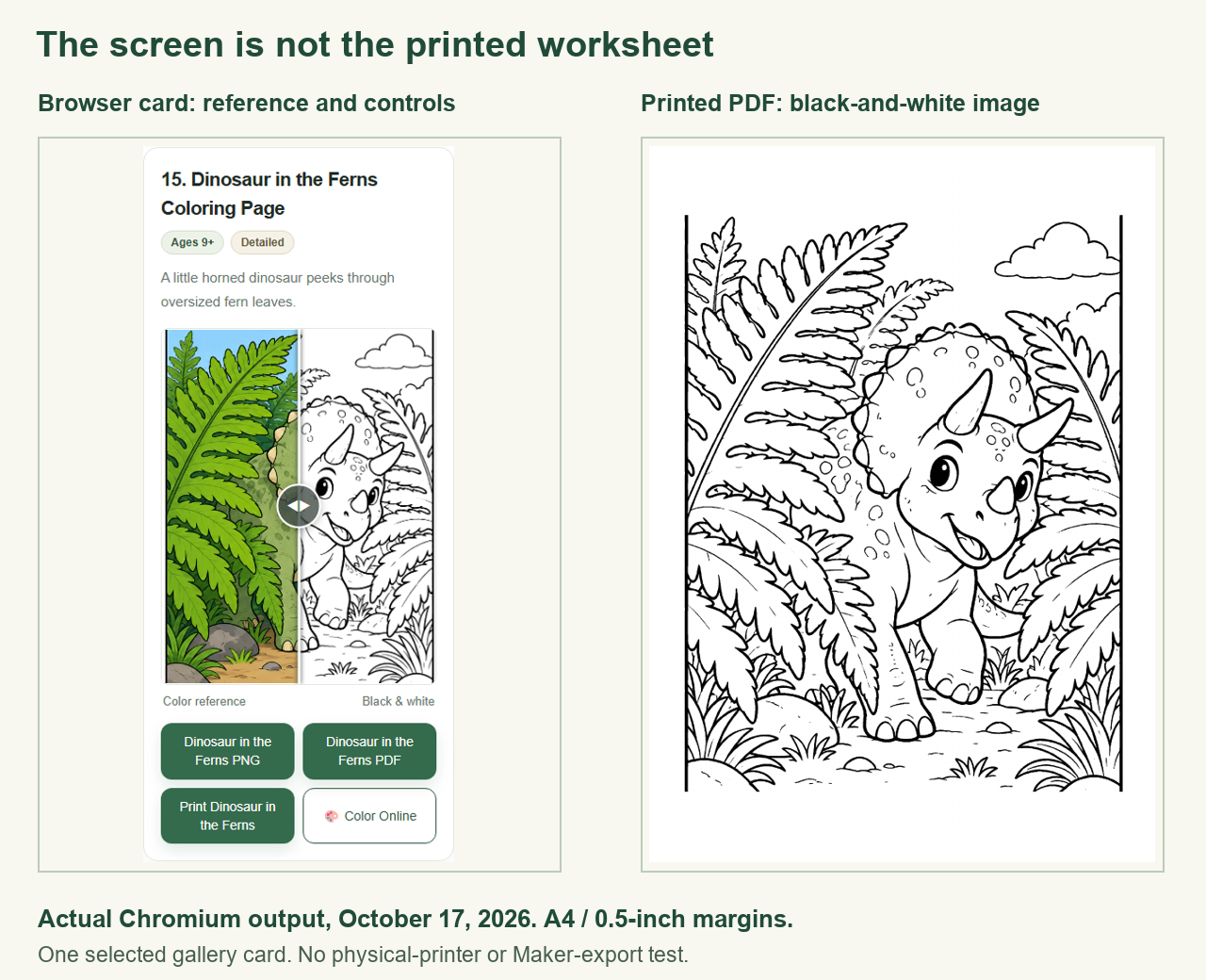
A short workflow for a clean single-page print
- Open a published gallery such as Dinosaur Coloring Pages and find the worksheet you want.
- Choose that card’s Print button. A complete-book download is a separate action.
- Inspect the preview: it should contain one worksheet image rather than the whole web page. The colored comparison image and action buttons should be absent.
- Confirm A4 paper and the scale your printer needs. If browser-added dates, titles, or URLs appear, disable its headers and footers option.
Our eight-output browser check
On October 17, 2026, we checked eight existing gallery page structures in Chromium: Dinosaur, Shapes, Weather, Dot to Dot, an Airplane Coloring Book page, Bunny, Color by Number, and Music. This deliberately includes older card layouts and an activity worksheet, rather than counting eight copies of the same page as separate coverage. We chose the fifteenth Dinosaur card to verify that selecting a later worksheet did not silently print the first one.
For pages with per-card Print controls, the check activated that control and inspected the selected source image. The Color by Number sample used browser printing with the worksheet heading focused because that layout does not expose the same per-card control. That distinction matters: a successful direct-card test should not be inferred from a generic browser-print test. Both routes used the current shared browser print handling.
The code prepared a separate print area containing one image. We compared that image’s source URL with the chosen card’s base worksheet image before generating the PDF. For a comparison slider, the selected source was the black-and-white base rather than the colored overlay. The current selection therefore did not depend on where the divider was positioned. The original card, its download links, and the Maker’s tracing code were left in place.
The print stylesheet requested A4 and a half-inch page margin. The PDF output measured approximately 594.96 by 841.92 points in each sample. A4 is the requested browser paper setting; the fractional difference from common point conversions reflects the browser’s output rounding, not a claim of precision from a physical sheet. We separately counted PDF pages, because looking at the first page alone could miss an unwanted blank second page.
| Page structure | PDF pages | PDF size in points | Colored pixels* |
|---|---|---|---|
| Dinosaur | 1 | 594.96 × 841.92 | 0 |
| Shapes | 1 | 594.96 × 841.92 | 0 |
| Weather | 1 | 594.96 × 841.92 | 0 |
| Dot To Dot Pages | 1 | 594.96 × 841.92 | 0 |
| Airplane Book | 1 | 594.96 × 841.92 | 0 |
| Bunny | 1 | 594.96 × 841.92 | 0 |
| Color By Number Pages | 1 | 594.96 × 841.92 | 0 |
| Music | 1 | 594.96 × 841.92 | 0 |
We rendered the full page at 72 dots per inch for inspection. A pixel counted as colored when its largest RGB channel differed from its smallest by more than 15. All eight renders had zero pixels passing that test. This is a reproducible monochrome diagnostic at that rendering resolution, not a guarantee about every printer’s ink system. The stylesheet also applies grayscale to the selected image, so older worksheets containing a small colored accent are printed as gray rather than as that accent color.
To inspect the margin, we located pixels darker than gray 225 in each rendered page. The ink bounds stayed at least 35 rendered pixels from each paper edge. At 72 dots per inch, that is consistent with a 36-point half-inch margin allowing one pixel of raster rounding. Ink bounds are not the image-box bounds: an illustration may already contain white space, so some visible margins will be larger. We did not crop away that original space or stretch the drawing to force ink to touch every edge.
We checked the print-state document and the resulting pages for navigation, the site footer, filters, action controls, and promotion blocks. Those surrounding interface elements were excluded, while the chosen illustration remained. After leaving print mode, the ordinary page and footer returned. A preview could still include text drawn inside the original worksheet itself, such as its title or instructions; removing website chrome does not erase content that belongs to the picture.
All eight outputs were single-page browser PDFs. These measurements do not test a printer driver, paper feed, toner, a mobile operating system’s print service, or ink coverage after hardware scaling. They also do not establish the behavior of another website or every future browser version. The check supports a narrower conclusion: these eight current site layouts produced one isolated grayscale image with the configured A4 margin in the browser print pipeline.
Download the actual Dinosaur browser proof · Read all eight measurements. To repeat the workflow, select the same gallery card, inspect the browser preview, and save the printed result as a PDF. Compare its page count and paper size before testing real paper.
Why might paper still look different?
The browser controls the document it sends, but your print dialog and driver can choose another paper size or apply scaling. Start with the page size your printer actually holds. Avoid treating a thumbnail or the color-reference preview as the download. A test sheet is more informative than assuming that a correct PDF guarantees the same result on paper.
Does this change my downloaded coloring book?
No. Browser gallery printing and existing downloadable files are separate. A downloaded US Letter PDF stays US Letter; an older A4 file stays A4. This printing update does not create new detail, make a low-resolution image 300 DPI, or turn raster artwork into vectors. Our Maker A4/Letter guide describes that tool’s download workflow.
What if I only see a placeholder?
A Template preview label means the artwork is still being prepared. Its download and Print buttons remain disabled. Use a completed collection instead. The Color Online link currently opens a coming-soon preview, not a coloring editor.
Watch the explanation
Watch the English single-worksheet print guide, with captions and the same method limits.
Sources and scope
The evidence is our current gallery implementation and eight measured browser outputs. The reviewed Mimi Panda landing page describes photo conversion and downloading/printing results; iColoring describes PNG/PDF downloads; Canva connects generation, editing, and PDF/PNG export. Those pages provide context, not evidence that their print behavior matches this site. We did not test competitor accounts, backends, or printers, and make no search-volume or ranking claim.