PRINT LAYOUT GUIDE
Coloring Page Maker: Why Is There White Space Around My Photo?
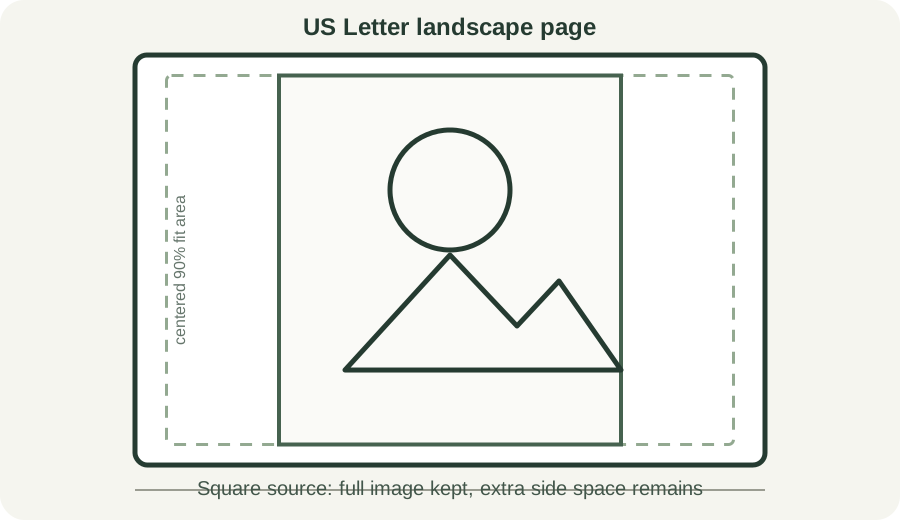
White space appears when the full photo is fitted onto paper with a different shape. This coloring page maker keeps the whole image visible, centers it on A4 or US Letter, and leaves a small print-safe inset. A square photo on a landscape sheet therefore has wider blank bands at the sides.
Make a printable coloring page
What this tool does to the page
The current browser code creates a paper-sized canvas, then scales the traced photo to fit inside a centered area equal to 90% of the page width and height. The image is not stretched to fill the sheet, and the tool does not crop off the edges. Keeping the complete photo avoids cutting out part of a person, pet, or object; the trade-off is that extra blank space can remain when the photo and page proportions differ.
For example, the US Letter landscape canvas is 3,300 × 2,550 pixels at 300 DPI. Its 90% fit area is 2,970 × 2,295 pixels. The fit rule takes the smaller scale that keeps both source dimensions inside that rectangle. A square source therefore leaves side bands, while a wide source can leave more space above and below. These dimensions come from the site's current page-size and image-fit settings.
| Source shape | Centered image area | Calculated blank bands |
|---|---|---|
| Square (1:1) | 2,295 × 2,295 px | 503 px at each side; 128 px top and bottom |
| Photo (3:2) | 2,970 × 1,980 px | 165 px at each side; 285 px top and bottom |
| Wide (16:9) | 2,970 × 1,671 px | 165 px at each side; 440 px top and bottom |
Compare each photo ratio with the landscape page ratio: 3,300 ÷ 2,550 is about 1.29. A square (1.0) is narrower, so the leftover area is at the sides. A 3:2 photo (1.5) and a 16:9 photo (about 1.78) are wider than the page, so more blank area appears above and below. That explains why two landscape photos can leave different borders even though the tool gives both landscape paper.
These examples use the current US Letter landscape canvas (3,300 × 2,550 px), its 90% fit box (2,970 × 2,295 px), and the source ratios shown. For each row, the scale is the smaller of fit-box width ÷ source width and fit-box height ÷ source height. Dimensions are rounded to whole pixels. This is arithmetic from the page-generation code, not a set of separate user-photo tests.
How to get a page that uses more of the paper
- Match the photo to the sheet. A landscape photo generally uses a landscape sheet, and a portrait photo uses a portrait sheet. The tool follows the source orientation.
- Move closer before taking the picture. If the subject is small with a lot of empty scenery around it, take a closer photo when possible. This changes the source composition; it is not a crop control in this tool.
- Crop a copy before uploading. If you already have the photo, crop a separate copy in your device's photo editor to a shape closer to the paper. Keep the original so you can try another framing.
- Check the preview and printed result. Use the PNG or PDF preview to see the page layout. If exact edge placement matters, print one page first on your own printer.
Questions about white borders on a photo coloring page
Does the coloring page maker crop my photo to fill the paper?
No. It fits the complete traced image inside the page area. If you want a tighter composition, crop a copy before uploading.
Why does a square photo have white bars on a landscape page?
A square image is narrower than a landscape sheet. When the whole square is kept at the correct proportions, unused space remains on the left and right.
Can I change the paper orientation in the tool?
The current tool follows your photo's portrait or landscape orientation and offers A4 or US Letter. It does not provide a separate crop or page-orientation override.
For photo and line-style guidance, see how to turn a photo into line art or how to compare the five styles.