PHOTO QUALITY & INPUT · OCTOBER 25, 2026
Coloring Page Maker: What Happens to Text in a Photo?
This coloring page maker traces lettering as part of the picture. It does not turn a name into editable text. Small letters can become crowded outlines. In our controlled check, larger lettering left more room inside the traced shapes, while switching from Clean Outline to Detailed did not change these particular exports. If a name must be clear and editable, add it after exporting in an editor with text controls.
Open the Coloring Page Maker · Maker Help & Guides
Should I put a name in the picture first?
You can try it if you want outlined letters to color. Use a large, plain font with space between letters, generate the page and inspect the saved file. For a readable classroom label or a name you may need to correct, convert the picture first and add the lettering afterward. The current Maker has no editable text box for correcting a name inside its generated image.
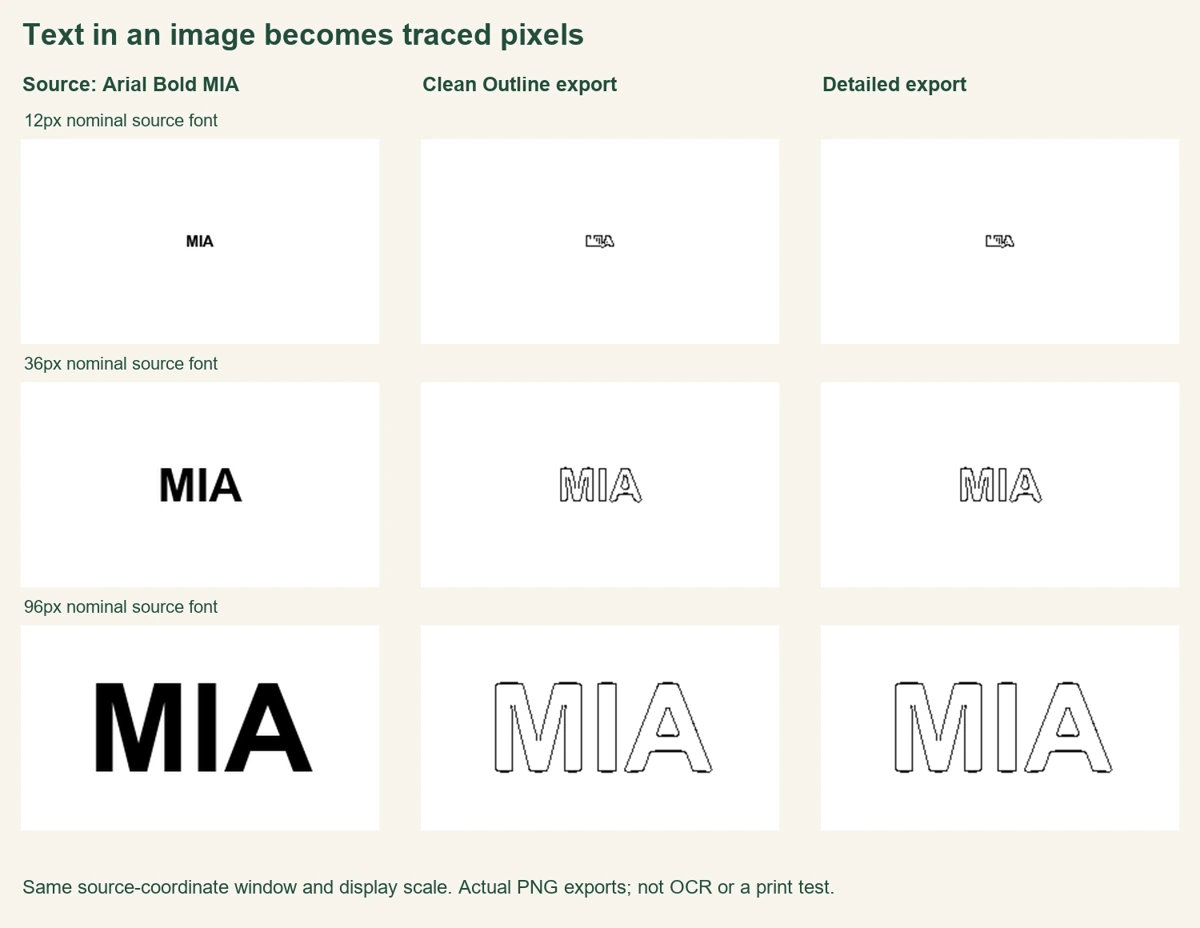
Our three-size lettering check
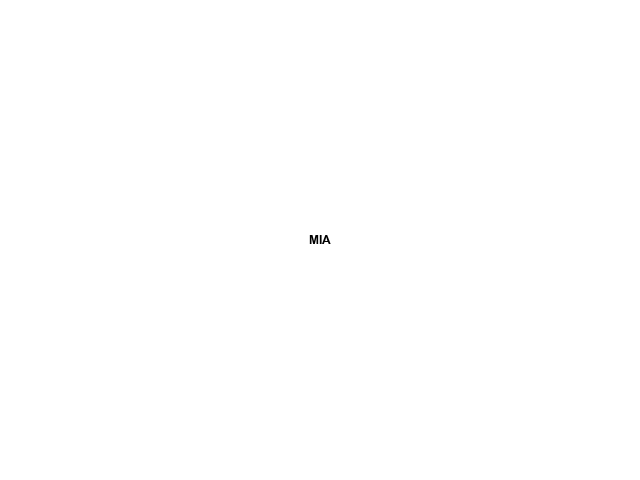
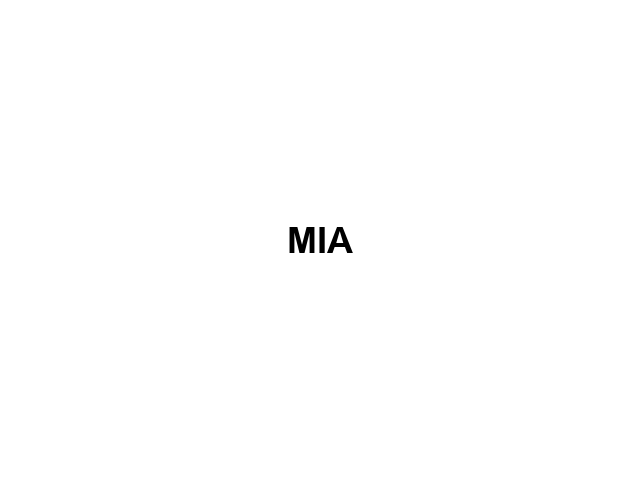
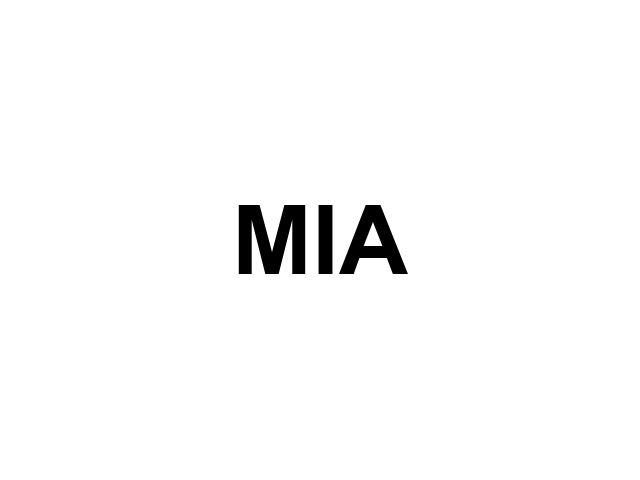
On October 25, 2026, we created three 640 × 480-pixel PNGs containing only the word MIA in black Arial Bold on white. The nominal font sizes were 12, 36 and 96 source pixels. We centered the actual letter shapes in each image. These sizes describe raster input, not printed points or a recommended classroom font size. The source record includes the actual ink bounds and file fingerprints.
We selected each file through the production Maker's normal upload control, chose A4 and generated one Clean Outline result and one Detailed result. We saved the actual PNG download each time. We repeated all six conversions in a fresh Chromium context at a 1440-pixel viewport width after the 390-pixel-width run. That produced twelve downloaded files. The viewport widths emulate layouts; this was not a test on a physical phone.
All twelve PNGs decoded at 3508 × 2480 pixels. Each stage had the same SHA-256 fingerprint at both widths. For each source size, Clean Outline and Detailed also produced identical PNG bytes in this check. That is a result for these sharp black-on-white samples, not evidence that the two styles always behave alike. We did not test faded ink, handwriting, signs at an angle, colored text or lettering over a busy photograph.
| Source font size | Clean Outline ink bounds | Detailed ink bounds |
|---|---|---|
| 12 px | 102 × 46 px | 102 × 46 px |
| 36 px | 297 × 130 px | 297 × 130 px |
| 96 px | 790 × 330 px | 790 × 330 px |
The table measures the smallest rectangle containing output pixels darker than 128 on a zero-to-255 grayscale scale. It is measured on the full downloaded page. A larger rectangle means that the letters occupied more output pixels; it does not mean that a spelling detector recognized them. Page fitting enlarges the source onto the A4 raster, so these dimensions must not be read as original font sizes.
In the comparison, the 12-pixel source becomes a small, crowded group of contours. The 36-pixel version has recognizable outlined letter shapes with irregular edges. The 96-pixel version leaves visibly larger white interiors for coloring. All three started as filled black letters. Their conversion to contours is consistent with the Maker tracing image edges rather than setting a new font. The one-stroke, two-outlines guide explains the related edge behavior.
To repeat the check, download the 12-pixel, 36-pixel and 96-pixel sources. Use A4 and compare Clean Outline with Detailed before saving. Our figure crops the same source-coordinate window from each input and the corresponding fitted area from each export, then displays all cells at the same scale. The full measurement record identifies every source, style, output and fingerprint.
We did not run OCR, score spelling accuracy, test every font or print these samples on paper. These results do not establish a universal minimum font size. A short clear name is a different input from a paragraph, a screenshot or handwriting. Inspect the actual letters you need before handing out a worksheet.
How do I keep an important name readable?
- Generate the picture without relying on small embedded lettering.
- Save the PNG or PDF and open the saved file.
- In an editor with text controls, add or correct the name at the size you need.
- Check the spelling and final page layout before printing. Keep an editable copy in that editor if you expect changes.
Adding text afterward is a separate editing step. It does not turn this Maker into a text editor. Increasing export resolution alone also cannot recover missing input detail; see what 300 DPI can and cannot fix.
Is this the same as a text-to-coloring-page prompt?
No. A prompt describes a scene for a generator. Lettering already visible in an uploaded image is source artwork. The reviewed iColoring page separates image and text-prompt routes; that distinction does not promise exact lettering preservation. Canva's official guide describes adding text in its editor. We did not test either service's conversion here.
Watch the example
Watch the English guide or return to Maker Help & Guides. Watch this guide on YouTube.
Sources and scope
The original source files, actual Maker downloads and recorded method support this comparison. We reviewed the official Mimi Panda converter, iColoring generator and Canva guide, in that order, for their conversion, style and editing workflows. We do not infer competitor typography quality, Google demand or search rankings from these pages.