PHOTO WORKFLOW · OCTOBER 20, 2026
Coloring Page Maker: How to Replace Your Photo
Save the result you want, choose a different JPG, PNG or WebP, then press Make my coloring page again. In this coloring page maker, selecting a valid replacement clears the earlier generated result. It does not generate the new page automatically. If you click Remove, the tool returns to the loaded sample illustration rather than recovering your earlier upload.
Open the Coloring Page Maker · Maker Help & Guides
How do I make a page from a second picture?
- Download the current PNG or PDF if you want to keep it.
- Use the photo chooser to select your next supported picture.
- Check that the selected-file panel refers to the new source. The previous download area should be hidden.
- Press Make my coloring page, inspect the new result and download it.
You can repeat this sequence while keeping the tool open. The current interface works with one selected source and one generated result at a time. Selecting another picture is a replacement workflow, not a way to queue several pictures for batch generation. Give your downloaded versions distinct names so you can find the right one later.
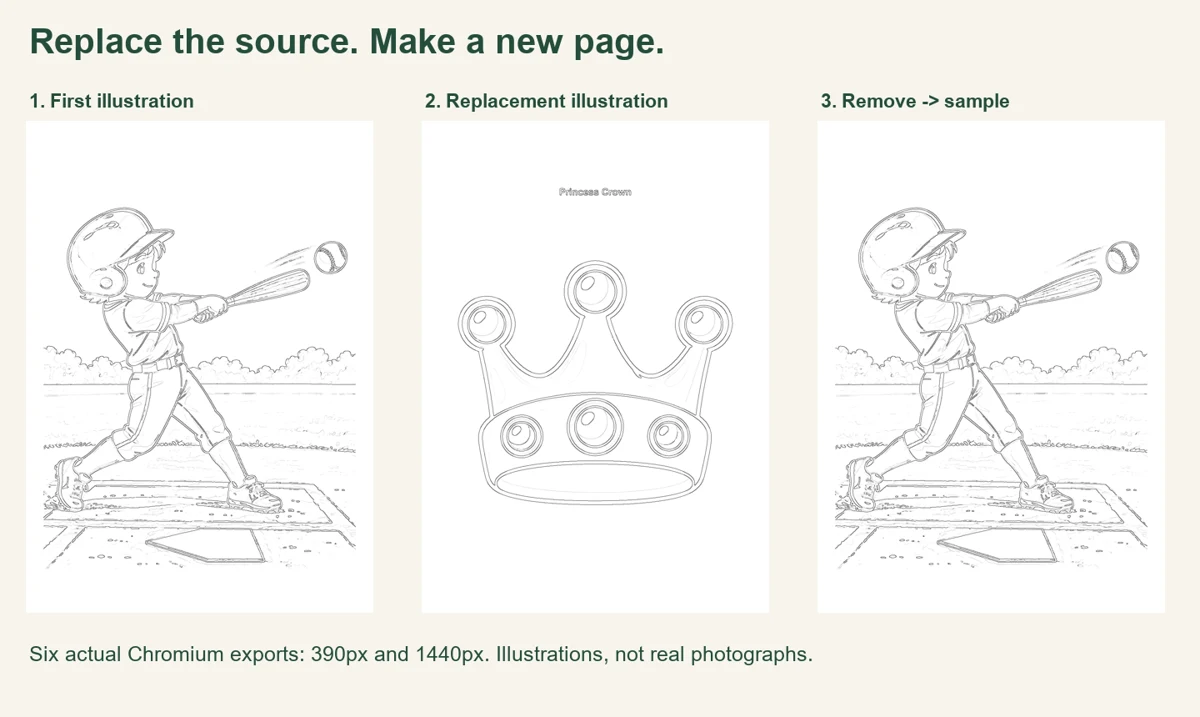
Our six-generation replacement check
We ran the production tool in Chromium on October 20, 2026, at 390-pixel phone width and 1440-pixel desktop width. Each width used a fresh browser context. We left the style at Clean Outline and the paper choice at A4. These are browser viewport checks, not physical phone or paper-printer tests. We used two existing site illustrations so the source change was obvious without using anyone’s personal photograph.
At each width, we first selected a local copy of the baseball illustration through the file input. Before pressing Make, the selected-file panel was visible and the generated download controls were hidden. After generation, the controls appeared and we downloaded the PNG. We then selected a local copy of our Princess Crown color reference without refreshing the page or changing the style. Again, the selected-file panel was visible and the old download controls were hidden. After another Make action, a different PNG was available.
For the third stage, we clicked Remove. The uploaded-file panel became hidden, and the old output controls were hidden too. The Make button was still enabled because the site’s default baseball sample was already loaded. We pressed Make and downloaded that sample result. This distinction matters: removing an upload does not leave the tool with an empty source when a ready sample is available. It also does not resurrect the previous uploaded crown picture or its generated output.
| Viewport width | Output hidden before Make | Crown differs from baseball | Sample matches baseball |
|---|---|---|---|
| 390 | 3 / 3 | Yes | Yes |
| 1440 | 3 / 3 | Yes | Yes |
There were six generated PNGs in total: three stages at each of two widths. We recorded the before and after state for each stage, giving twelve recorded interface states. For both widths, the first baseball export and the post-Remove sample export had identical SHA-256 hashes. The crown export had a different hash. Matching stages also produced the same hash across phone and desktop widths. These checks establish which source was used in this controlled sequence; they do not rank image quality or guarantee that every browser and every photograph behaves identically.
To repeat the check, keep the style and paper choices fixed, make a page from a recognizable first picture, replace it with a visibly different second picture, and observe the cleared download area before generating again. Save both versions. Then use Remove and Make to inspect the ready sample. The files already downloaded are separate copies: the files saved during our check were still present after the source changed. The page itself is not an archive of all those versions. Read the recorded states, file sizes, hashes and implementation fingerprint.
Why did my download buttons disappear?
A valid new source clears the previous output so the old file is not presented as a result for the replacement picture. Press Make again. If the new file cannot be opened or is rejected, read the message on the page; this check covered valid replacements, not every possible file error. See the image requirements for supported inputs.
Can I go back to my earlier uploaded picture?
Select that picture again from your device and generate it again. Remove returns to the sample, rather than providing an upload history. Save useful results before changing the source. For another preset on the same picture, see switching line styles; before leaving the tool, read what to save before refreshing.
Watch the replacement workflow
Watch the English guide or return to Maker Help & Guides. Watch this guide on YouTube.
Sources and scope
The replacement and Remove behavior above is based on this site’s recorded browser check and current file-handling implementation. We reviewed the official Mimi Panda converter, iColoring and Canva generator guide in that order. These pages explain generation and export workflows, but the sections we read did not establish this site’s replacement-to-sample behavior. No competitor account, conversion result, traffic estimate or ranking claim is part of our test.