LINE STYLE WORKFLOW · OCTOBER 19, 2026
Coloring Page Maker: Switch Styles Without Re-uploading
Choose another style, then press Make my coloring page again. Your selected picture stays in this coloring page maker while the page remains open. A style change clears the previous generated output; it does not automatically generate a replacement. Download any version you want to keep before switching.
Open the Coloring Page Maker · Maker Help & Guides
How do I compare styles on my own picture?
- Select a clear photo once and choose a line style.
- Press Make my coloring page and inspect the generated result below the controls.
- Download the PNG or PDF if you want to keep that version.
- Choose another style and press Make again. Keep the page open and leave the source picture selected.
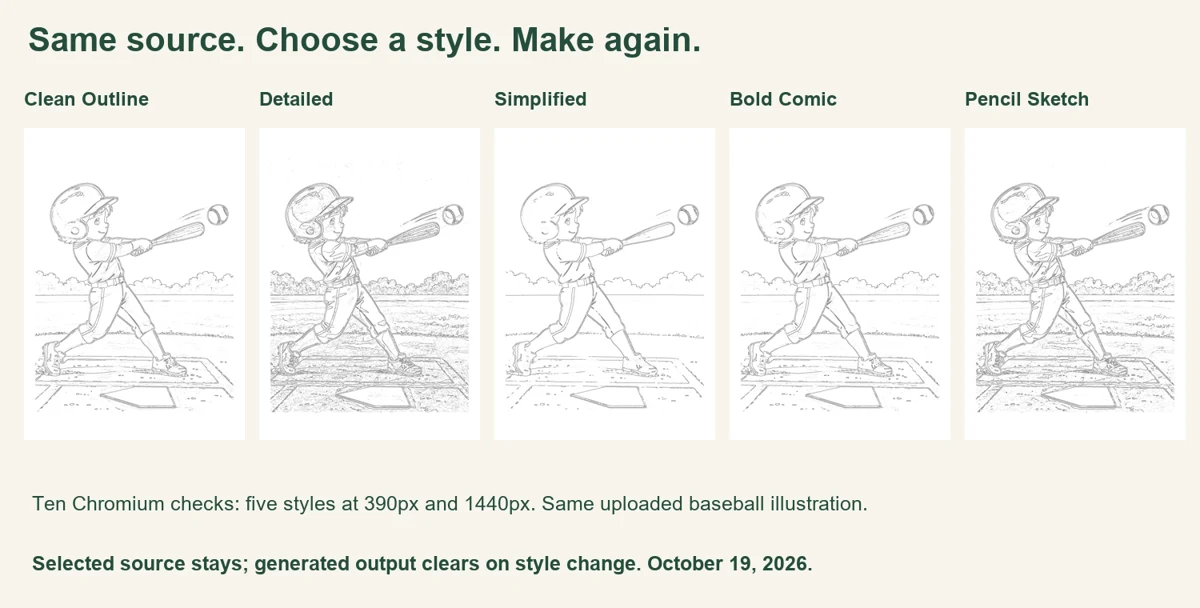
The five choices are Clean Outline, Detailed, Simplified, Bold Comic and Pencil Sketch. They are browser processing presets, not a prompt-based redraw of your subject. The style names help you choose a starting point; inspect your actual result before deciding which version is easiest to color.
What happened in our ten-generation check?
We tested the current production tool in Chromium on October 19, 2026, at 390-pixel phone width and 1440-pixel desktop width. Each viewport started in a fresh browser context. We selected one local copy of the site's baseball illustration through the file chooser, then used all five styles sequentially without selecting the file again. We kept the paper setting at its default A4 value. These are browser viewport tests, not physical-phone or paper-printer tests.
Before each generation, we recorded whether the selected-file panel was still visible, whether the generated download actions were hidden, and the selected style heading. In all ten recorded states, the source file was still selected and the output actions were hidden. For the first style there was no earlier result; for the other four styles at each width, the preceding generated output had been cleared by the style change.
We then pressed Make, waited until the generated download actions appeared, and downloaded the PNG. Each result description matched the selected style, and every output reported A4 at 2480 × 3508 pixels. The table lists the phone-width downloads. The matching desktop-width export had the same byte count and SHA-256 hash for each style.
| Selected style | PNG bytes | Source kept before Make | Hash matches desktop |
|---|---|---|---|
| Clean Outline | 1,834,898 | Yes | Yes |
| Detailed | 3,530,468 | Yes | Yes |
| Simplified | 1,424,575 | Yes | Yes |
| Bold Comic | 1,736,983 | Yes | Yes |
| Pencil Sketch | 3,056,045 | Yes | Yes |
All five style outputs had different hashes from one another for this illustration. That establishes that five different image files were exported in this check, while a matching style produced the same file at the two widths. A file hash does not rate visual quality, count closed coloring regions or establish that one preset is best for every photograph. The comparison above lets you inspect the actual exported appearance rather than inferring quality from file size.
The workflow also explains an apparent missing result after selecting a new style. The download area disappears until you generate the new version. That state is intentional in the current implementation: the tool no longer offers the earlier result as though it matched the newly selected setting. It keeps the source available for the next generation, but it is not a gallery of previous outputs. Save the variants you want as separate files.
To repeat this check, select an image, make and download one result, change the style, confirm the selected-file panel remains, and press Make again. Compare the downloaded versions at the same scale. We did not test every browser, every source image or the effects of leaving the page between steps. The current conversion code was unchanged for this experiment. Read the ten recorded states, output sizes, hashes and implementation version.
Why does the upper preview still show my original picture?
With your own picture selected, the upper preview shows that selected source and tells you to make a page. It is not a live rendering of every style. Read the selected style heading and inspect the generated result after pressing Make. With the default sample selected, the before/after examples demonstrate the presets using the site's sample illustration.
Can I recover the previous style after switching?
You can select that style and generate it again while the source remains selected. To retain several versions, download each one before switching and give the files distinct names in your device's file manager. A downloaded PNG is separate from the current page state. See what a full refresh clears before leaving the tool.
Watch the workflow
Watch the English style-switching guide. For input preparation, see photo requirements; for a phone walkthrough, see using the Maker on a phone. Watch this guide on YouTube.
Sources and limits
The state and export results above are first-party measurements of this site. We reviewed the official Mimi Panda converter, which presents named conversion types; iColoring, which describes named styles; and Canva's generator guide, which describes changing styles between generations. Their published workflows informed the comparison question, but do not establish this site's selected-file behavior. We did not submit competitor accounts or generation requests, and make no search-volume or ranking claim.