PHOTO QUALITY & INPUT · NOVEMBER 3, 2026
Coloring Page Maker: Will a Photo Border Appear on Your Coloring Page?
It can. In our controlled test, a black rectangular border added to a synthetic image appeared as outline lines in the downloaded coloring page. If you do not want a border, check the original image and remove or crop it on a copy before converting; then inspect the finished preview.
Open the Maker · Maker Help & Guides
Our border comparison
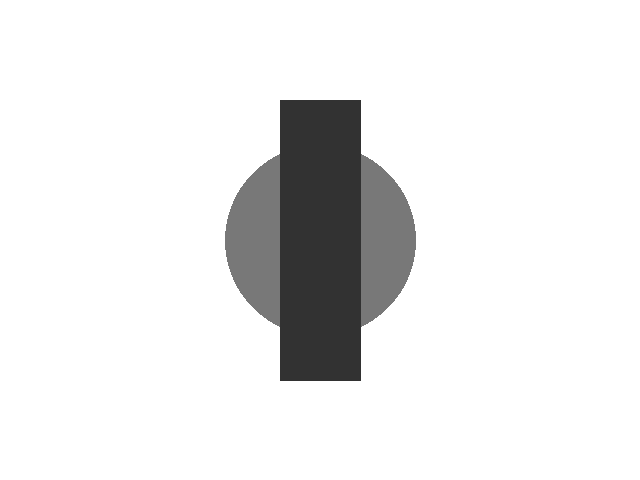
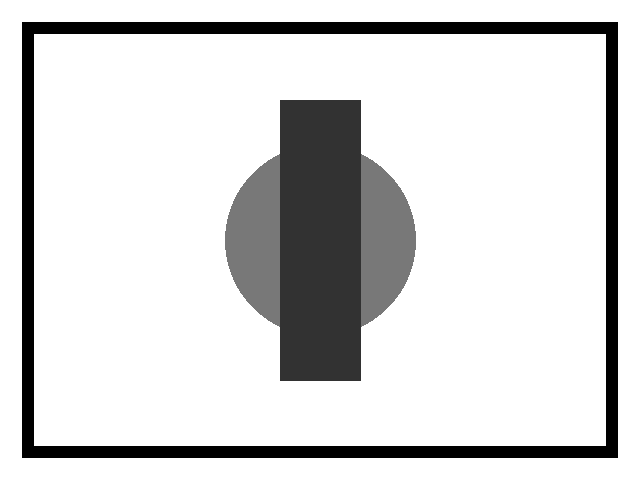
We created two original 640 by 480 pixel digital illustrations. Both have the same gray circle and dark rectangle against a white background. In the second image only, we added a black rectangular frame, 12 pixels wide and inset 22 pixels from the edges. The subject, background, canvas dimensions and file format otherwise stay the same. These are controlled geometric illustrations, not photos or screenshots.
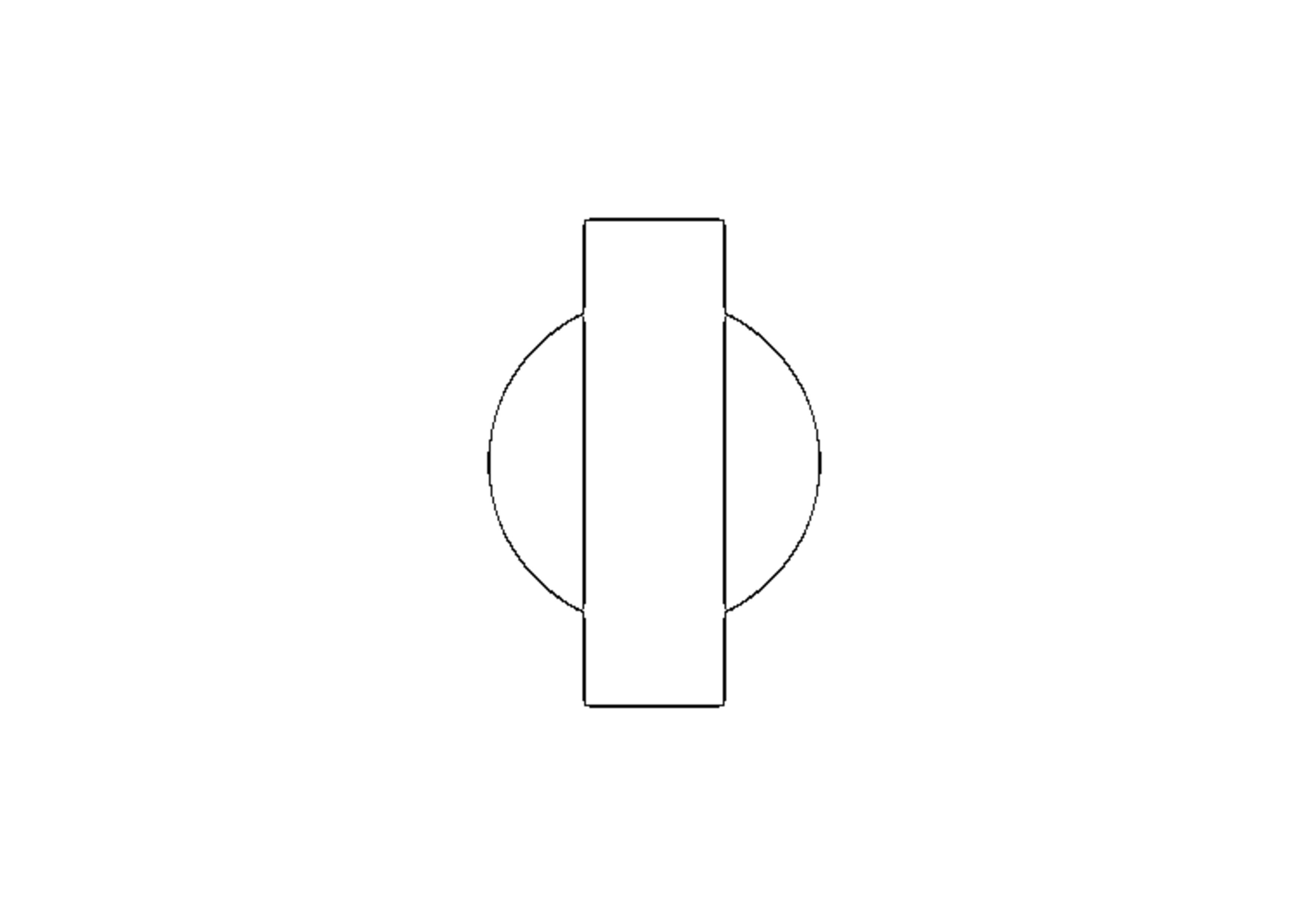
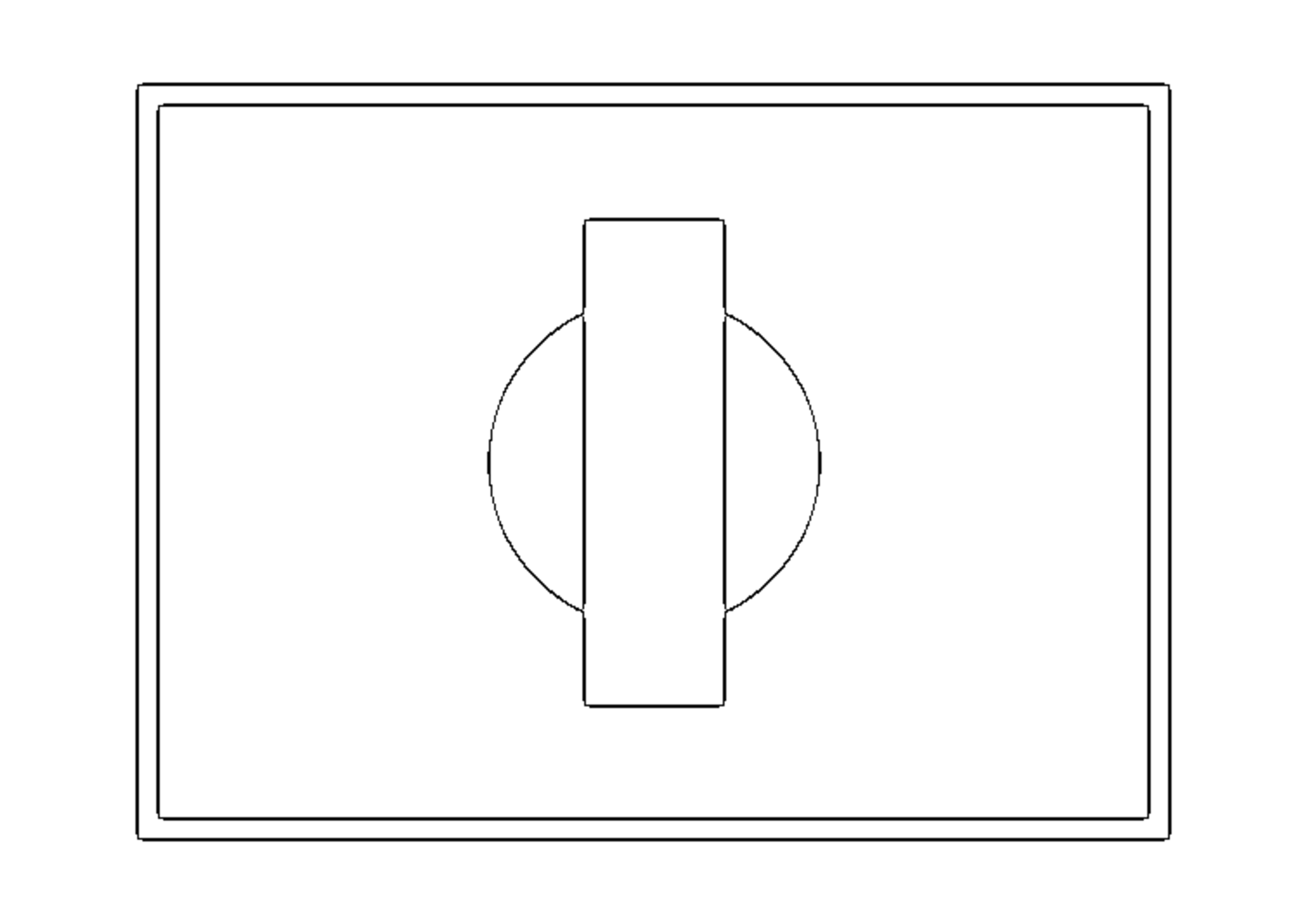
We opened the current production copy of this Maker in Chrome, selected Clean Outline and A4, generated each image and clicked Download PNG. Both actual downloads measured 3508 by 2480 pixels. The output from the framed image visibly includes two rectangular outline edges around the subject; the output from the plain image does not contain that rectangle. The figure below shows those actual downloaded pages reduced for display.
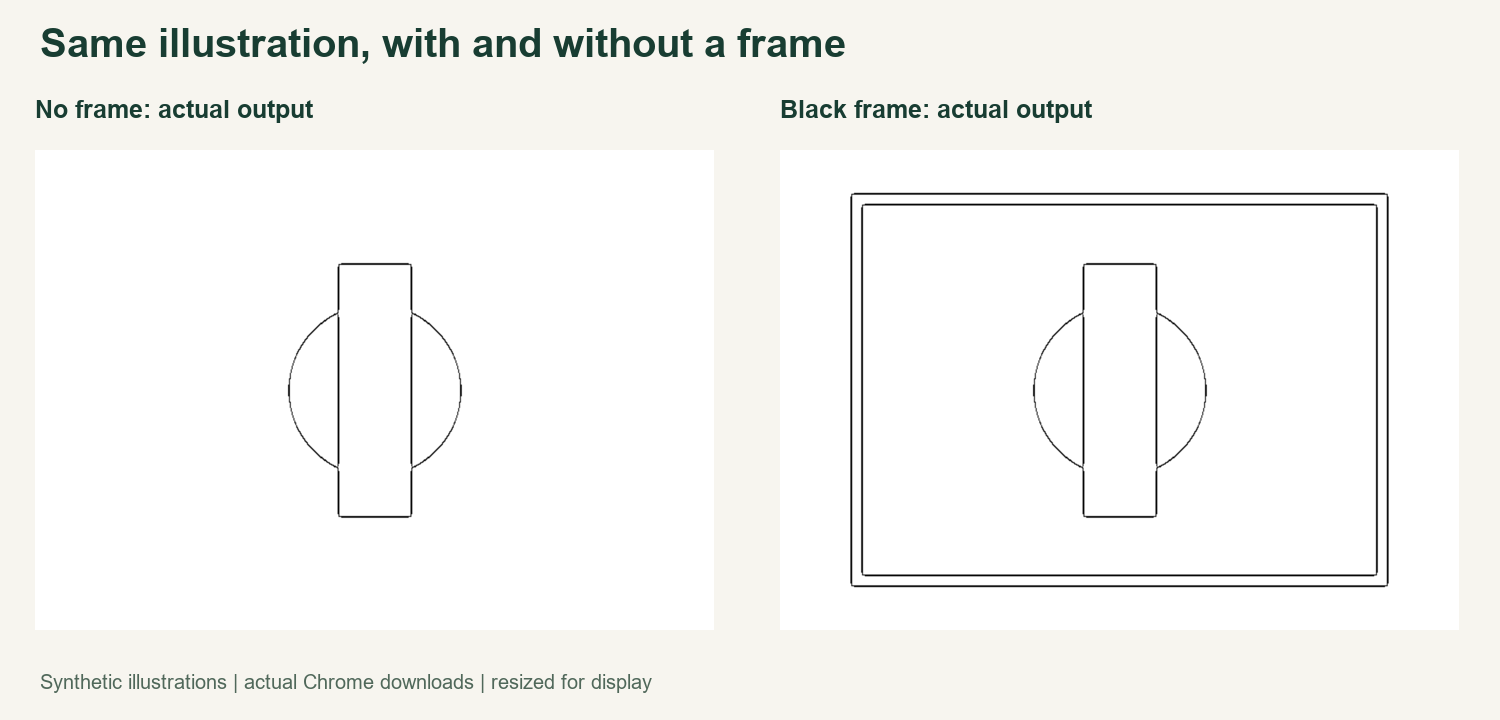
The output files have different SHA-256 fingerprints. Comparing RGB pixels at the same page coordinates found 289,016 differing positions out of 8,699,840. A position counts as different when any channel differs. This count describes the entire output, not the number of border pixels, a visual quality score or a print measurement. Our inputs, full downloads, measurements and method are linked below for inspection.
What this result means
In this one example, the dark border is part of the supplied pixels and appears in the generated line art. The test does not establish how every decorative frame, faint edge, screenshot, camera photo, style or browser will behave. It was not a physical print or a competitor test. The result also does not mean all white space around the image is a border: page fitting can leave blank bands when a photo and paper have different proportions.
This comparison changes the added border but keeps the central shapes fixed. It does not prove why every individual output pixel differs, nor guarantee identical behavior after the tool changes. The thick black border was deliberately easy to distinguish; a pale or textured border may produce a different result.
Check your own image
Keep the original file. Open a copy and look for a decorative frame, screenshot edge or border that is actually part of the image. If it is unwanted, remove it in your editor or crop just inside it, taking care not to cut off a person's head, a pet's ears or another important part of the subject.
Generate the page and inspect the preview before downloading. If you crop, the picture's composition or aspect ratio may also change, so compare the result with the original version using the same style and paper. A visible outline that belongs to the scene itself may need separate editing; a crop is not a background remover.
For adjacent issues see white space around a photo, cropping a photo, and busy backgrounds. Open the Maker, watch the video guide, or browse Maker Help & Guides.
Test files: plain input, framed input, plain result, framed result, measurements, and method and app fingerprint.