DEVICES & WORKFLOW · OCTOBER 24, 2026
Can This Coloring Page Maker Convert Multiple Photos at Once?
No. This coloring page maker processes one selected picture at a time. It has no batch queue or multi-photo book export. To make several pages, choose one picture, press Make my coloring page, save the result, and then choose the next picture. Check the selected filename before each conversion.
Open the Coloring Page Maker · Maker Help & Guides
How do I make a set of pages?
- Choose the first JPG, PNG or WEBP picture and check its filename.
- Choose your style and paper size, then press Make my coloring page.
- Inspect the result and download the PNG or PDF before replacing the source.
- Give the saved file a useful name, such as
cat-clean-a4.png. - Choose the next picture and repeat. Keep your saved pages in a folder.
These steps create separate files. The Maker does not automatically combine them into a single coloring book. If you need a ready-made book, browse the free coloring books. For source replacement details, see choosing another photo.
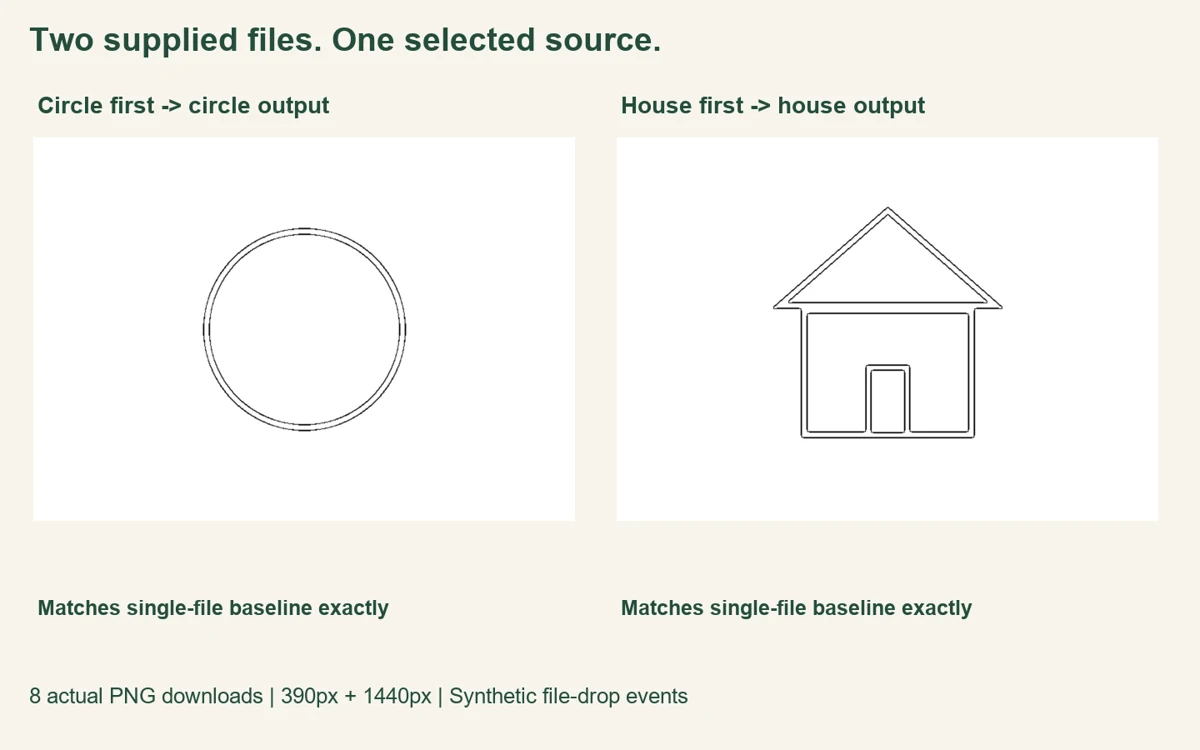
Our two-file input check
On October 24, 2026, we checked the production tool in fresh Chromium contexts at 390-pixel and 1440-pixel viewport widths. We created two original 640 × 480-pixel illustrations: one large circle and a simple house. They are controlled drawings, not camera photographs. You can download the circle source and house source to repeat the single-picture steps.
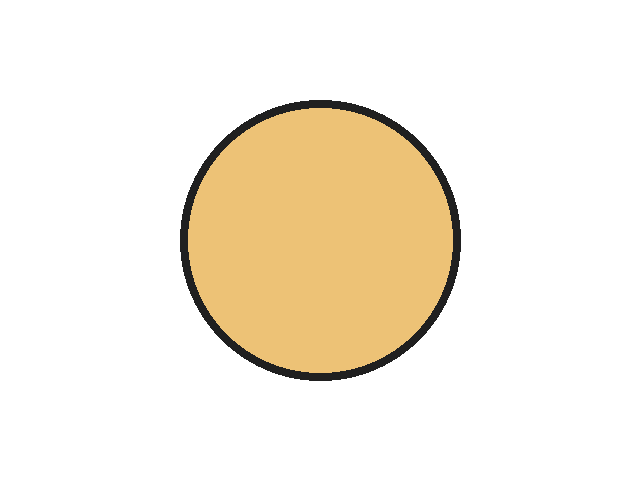

First we selected the circle through the normal file input, generated Clean Outline on the default A4 setting, and saved the actual PNG download. We then repeated those steps with the house. These two exports provided distinct reference files. Their SHA-256 fingerprints differed, which let us distinguish the output for one source from the output for the other without judging by a filename.
Next we supplied both files to the existing drop area in a single automated drop event: circle followed by house. We waited for the selected filename to update, pressed the normal Make button, and downloaded the result. We repeated the event with the order reversed. The events used a browser DataTransfer containing two real PNG Files. This exercised the production drop handler; it was not a physical mouse drag or a phone's native photo picker.
| Input order (both widths) | Selected source | Output matches |
|---|---|---|
| single circle | circle-source.png · 640 × 480 px | circle baseline |
| single house | house-source.png · 640 × 480 px | house baseline |
| drop circle then house | circle-source.png · 640 × 480 px | circle baseline |
| drop house then circle | house-source.png · 640 × 480 px | house baseline |
Both viewport widths gave the same pattern. Circle-first selected the circle filename, and its downloaded PNG matched the single-circle reference byte for byte. House-first selected the house filename, and its download matched the single-house reference exactly. The baseline outputs remained different from each other. Each matching stage also had the same fingerprint across the two viewport widths. All eight actual PNG downloads decoded successfully at 3508 × 2480 pixels.
We also inspected the existing file input in the rendered page: its multiple-selection property was false at both widths. The current source code reads the first file from both the file-input event and the drop event. That observation agrees with the selected-source labels and output fingerprints. It explains why supplying two files together did not create a queue in this check.
This is a narrow functional check of the current implementation. We did not test every browser, a real touchscreen file picker, physical drag order, multiple browser tabs or competitor conversions. Your operating system may order selected files differently. Do not depend on a drag selection to choose the source you intended: select one picture explicitly and check its name. The recorded method and fingerprints identify each input order, selected filename and downloaded file.
Will choosing the next picture save the previous page?
Save the result yourself before changing the source. A new source replaces the current working picture; it does not add another entry to a project list. See what to save before leaving. To keep several exports easy to identify, follow naming different downloaded versions.
Do other generators offer bulk conversion?
Some provide a separate workflow. The reviewed iColoring bulk page explicitly offers selecting up to 20 images. That is a statement on its interface, not a conversion we tested. It does not describe this site's Maker. Use the single-picture steps above here.
Watch the steps
Watch the English guide, or return to Maker Help & Guides. Watch this guide on YouTube.
Sources and scope
Our selected-source labels, actual downloaded PNGs and fingerprints support the local results. We reviewed the official Mimi Panda converter, iColoring generator and Canva guide, in that order, and followed iColoring's bulk link. Mimi Panda describes converting pictures individually for a book; Canva describes generating pages and assembling a book. These are separate workflows. We make no claim about competitor output quality, account limits beyond the cited interface, search volume or ranking.