DEVICES & WORKFLOW · OCTOBER 28, 2026
Coloring Page Maker: Why Does the Style Preview Look Different from the Finished Page?
A style thumbnail is a small preview, so fine lines may look thicker, disappear, or merge at that size. The finished page is generated separately at a larger working size. Choose a style from the thumbnails, then make the page and inspect the result before printing.
Open the Maker · Maker Help & Guides
A small test with the same input
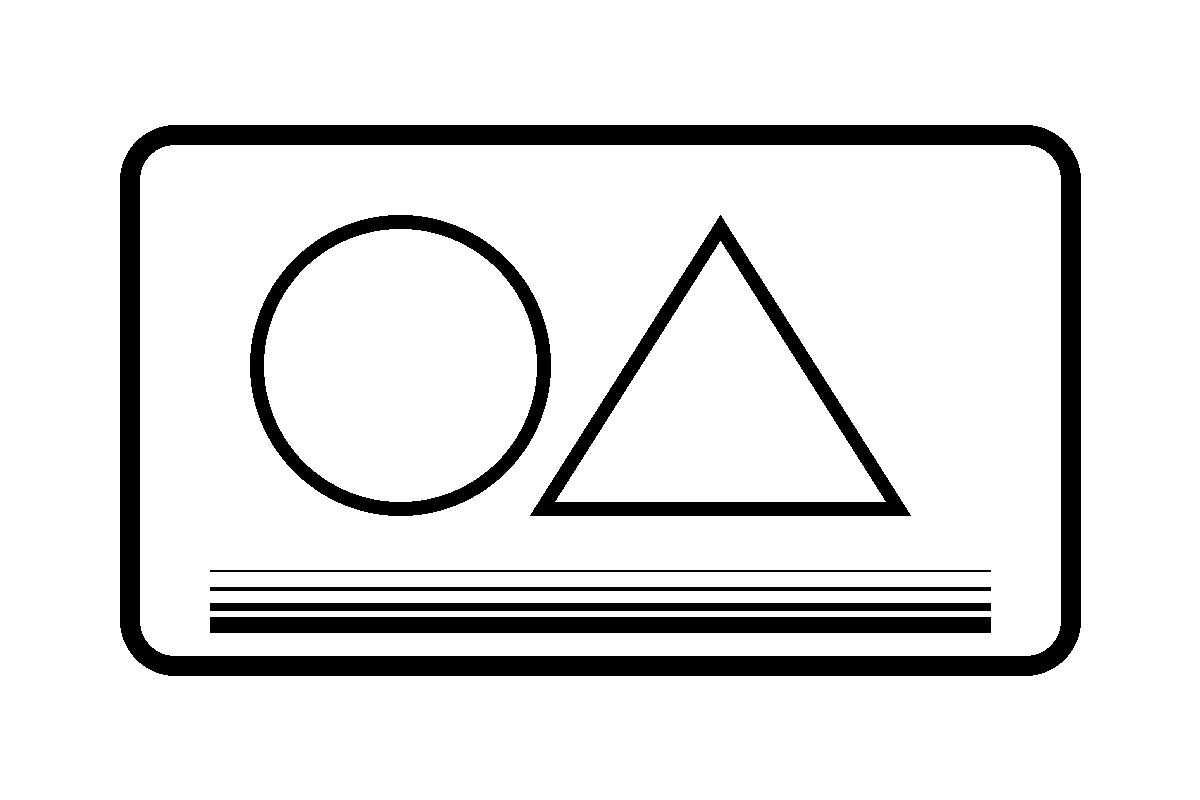
We made a synthetic 1,200 × 800 pixel image with a rounded rectangle, a circle, a triangle, and four closely spaced horizontal lines of different widths. This is a test graphic, not a photograph. We uploaded that same PNG to the Coloring Page Maker, selected Clean Outline, clicked Make my coloring page, and downloaded the resulting PNG on A4 landscape. We did not change the input between the thumbnail and the finished page.
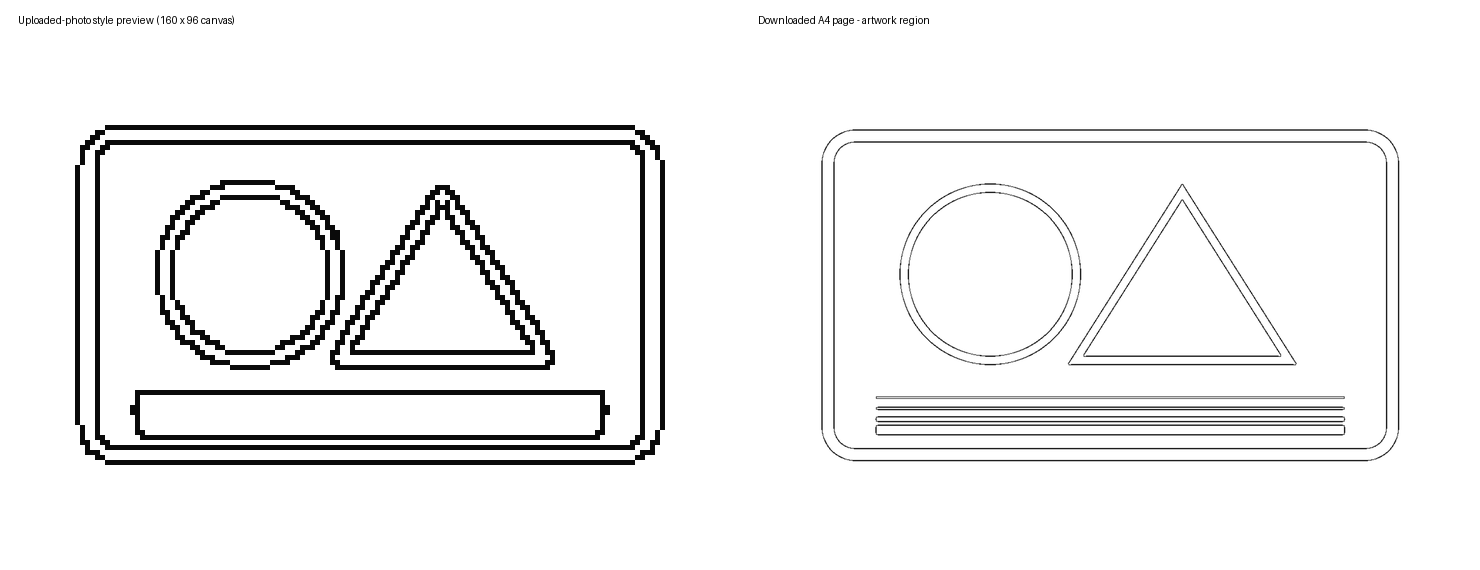
The uploaded-photo style canvas measured 160 × 96 pixels. The maker processed this particular source at 1,200 × 800 pixels, because its longest side was below the 2,600-pixel processing limit. The downloaded page measured 3,508 × 2,480 pixels. Those are three different stages: the source image, the small preview canvas, and the finished paper canvas. They are not three versions of a print at the same physical size.
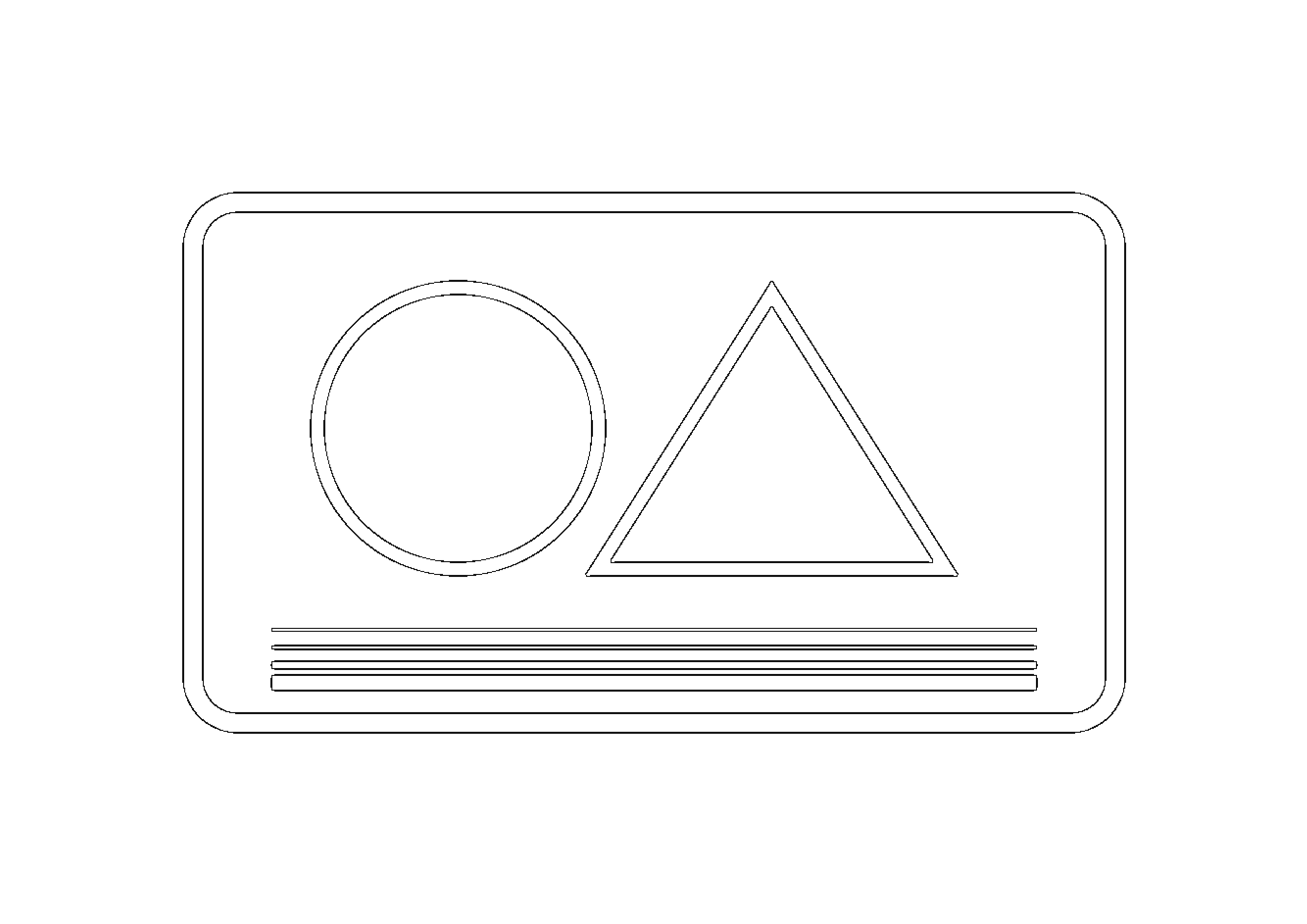
In this one test, the larger rounded rectangle, circle, and triangle appeared in both views. The four close horizontal lines appeared as one thick outlined bar in the tiny preview; in the downloaded page, four separate line shapes were visible. To compare the same artwork area, we cropped the white paper margin from the downloaded page and enlarged the thumbnail; nearest-neighbor enlargement makes the preview's pixels visible. The downloaded artwork was resized for display. This illustration compares screen images, not physical prints.
Why the two views can differ
For an uploaded picture, this maker first fits the image into the 160 × 96 thumbnail canvas and runs its outline conversion there. When you make the page, it runs the conversion again on a separate working image, limited to 2,600 pixels on its longest side, and places that result on the chosen paper canvas. Sampling small details into a much smaller canvas can change how close lines appear. The thumbnail is useful for choosing a style, but it is not an exact miniature of the downloadable page.
Before you upload a photo, the style cards instead show static baseball examples. They demonstrate the styles, but they cannot predict which lines your own picture will produce.
What to do before printing
1. Upload the picture and use the style previews to choose a starting point. 2. Select Make my coloring page and look at the generated page, especially faces, small text, and close details. 3. If it is not right, try another style and generate again. Download the result you prefer; inspect the PNG or PDF before printing.
The example demonstrates one synthetic input and one style in Chrome; other pictures, styles, browsers, and display sizes can look different. We did not test a physical print. A larger final canvas cannot restore detail that was never present in the source image.
Related guides: Switch styles without re-uploading, Do narrow gaps stay white?, and Maker Help & Guides.
Reproduction details
Tested 2026-10-28 with Chrome 156.0.8078.48 in headless mode against the local site files. The PNG was created as a white 1,200 × 800 canvas with black geometric outlines; four horizontal source strokes were 2, 4, 8 and 16 pixels wide with 18-pixel center spacing. The preview was captured directly from the first style canvas, and the final PNG was downloaded using the site's button. The tested `app.js` SHA-256 was `fb728a912378c8e7350a98bbbe3b656a5da1c96955411e3c3ec9e83b30dea13c`. A4 landscape was the selected paper setting. Screenshot enlargement and downsampling were only for the comparison graphic and did not alter the site's exported file.
Reproduce with the input image, captured thumbnail, downloaded PNG, and observation record. Watch the video.
Official pages reviewed October 28: Mimi Panda, iColoring and Canva. The experiment above is our own observation of this site; publication and indexing dates for the competitor pages are unknown.