PRINTING & PAPER · OCTOBER 29, 2026
Coloring Page Maker: What Determines Portrait or Landscape?
The current maker chooses landscape when the decoded input is wider than it is tall. A portrait or square input produces a portrait page. Upload an image with the orientation you want, generate the page, and check your printer’s orientation before printing.
Open the Maker · Maker Help & Guides
Our three-image test
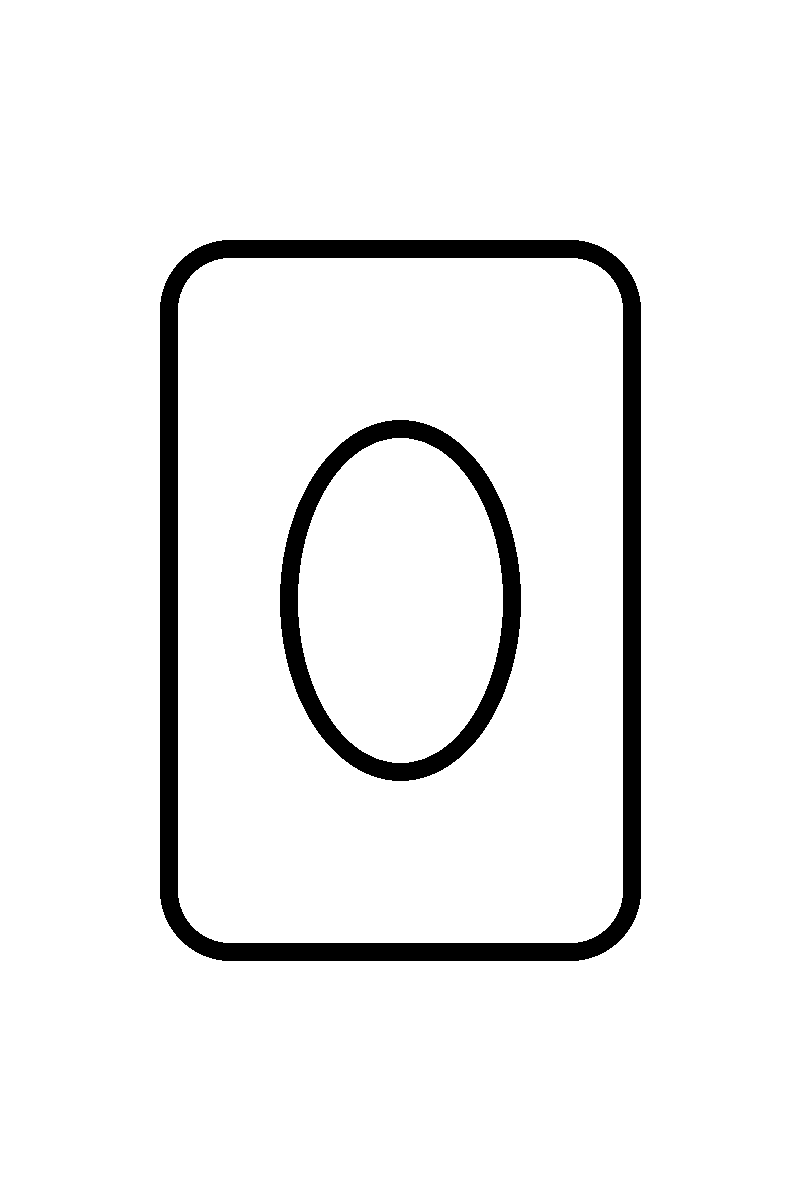
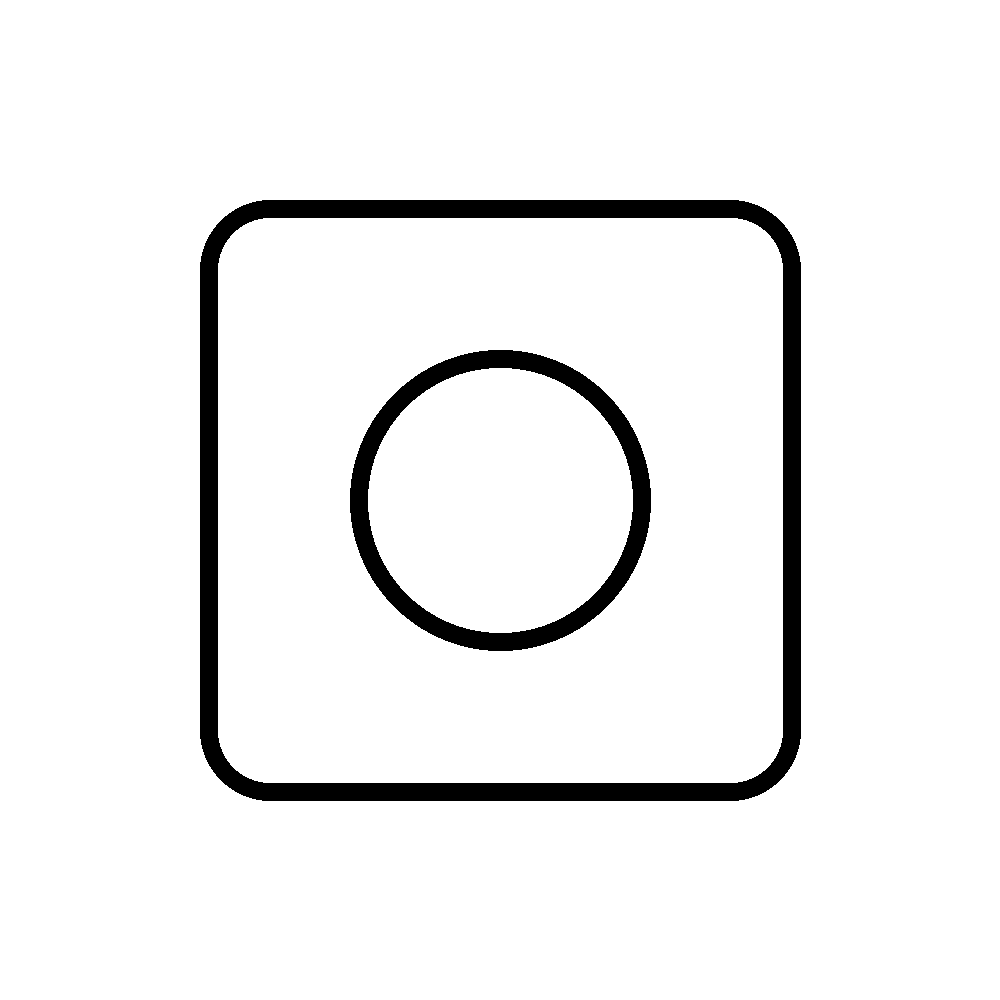
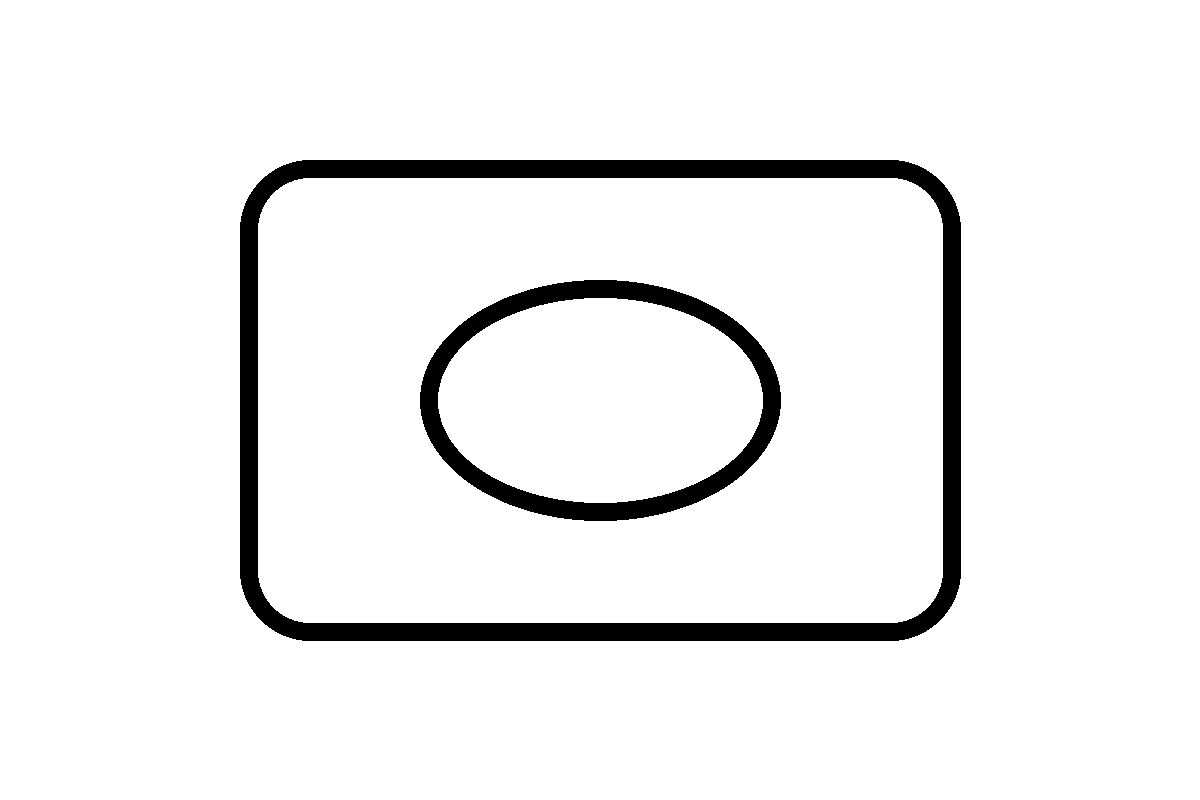
We created three synthetic PNG images with the same simple rounded rectangle and circle: 800 × 1,200 pixels for the portrait input, 1,000 × 1,000 for the square input, and 1,200 × 800 for the landscape input. They are geometric test images, not photographs. We opened the current local site in headless Chrome, uploaded each image separately, selected Clean Outline and A4, generated the result, and downloaded the PNG with the site button.
For the portrait input, the downloaded page measured 2,480 × 3,508 pixels. The square input also produced 2,480 × 3,508 pixels. The landscape input produced 3,508 × 2,480 pixels. The three page sizes and orientations are observations from this test, not a guarantee about other applications or later versions.
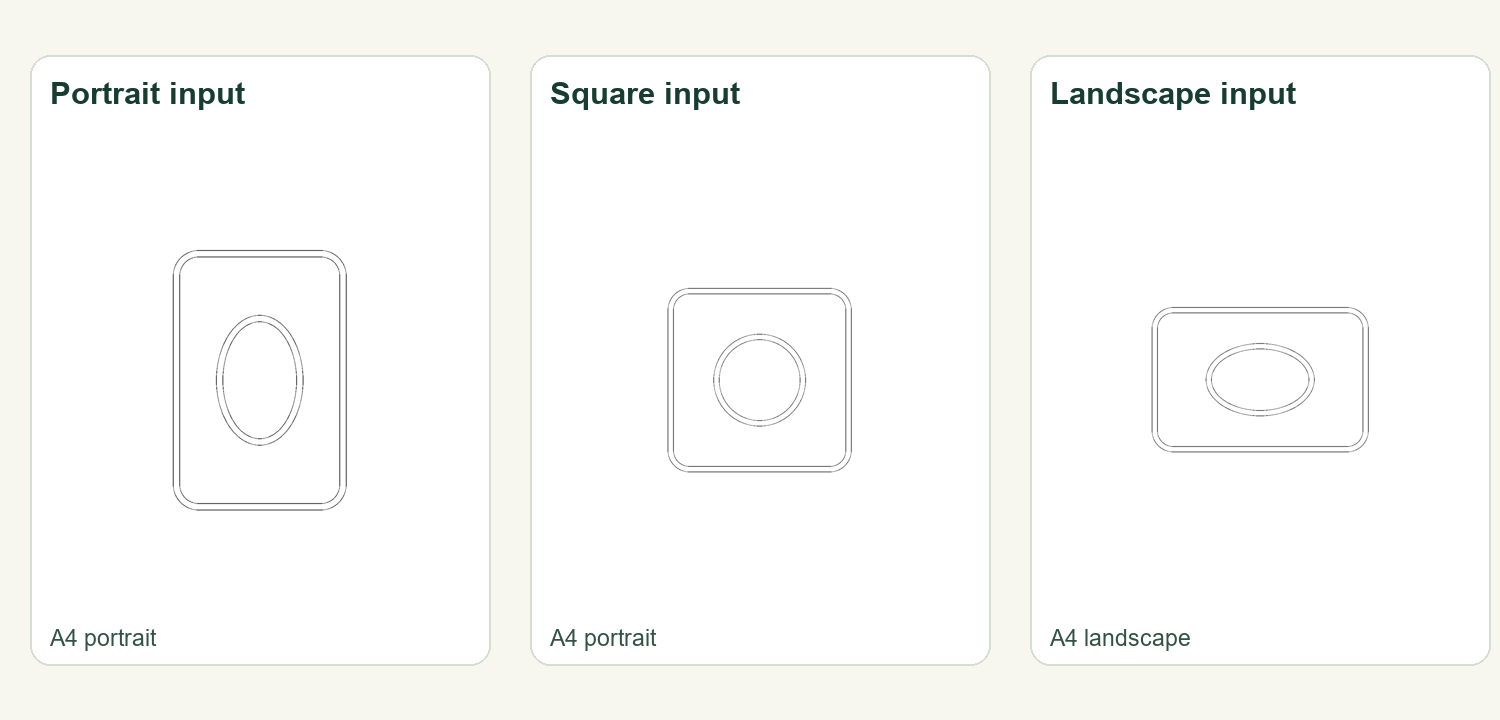
The comparison uses the actual downloaded PNG files reduced to fit the page. We added labels and a background for readability; the downloads themselves were not changed. All three examples contain the same type of geometric subject, but each was drawn independently at its stated size. We did not use a real photo or test a physical printer.
The source code checks whether the decoded bitmap width is greater than its height. When that comparison is true, the maker swaps the paper dimensions to landscape. When the width is equal to or less than the height, the maker uses portrait. This explains the square case in our test. Orientation is based on the whole decoded image, not the visible outline inside it; an image with white borders may therefore have a different aspect ratio from its subject.
To reproduce the test, download the three input PNGs and the recorded observations linked below. Upload each input separately to the maker, select A4 and Clean Outline, click Make my coloring page, and save the PNG. Read the image width and height in your file viewer. Our run used Chrome 156.0.8078.48 and the current local app.js fingerprint recorded with the test. Browser behavior and future site changes can differ; no other paper setting was tested here.
What if the page faces the wrong way?
Check the orientation of the entire saved image before upload. If necessary, rotate or crop a copy in your photo editor, save it, replace the image in the maker, and generate again. Rotation or cropping can change the image content and placement, so retain your original file. A square input will still select portrait in the version tested here. A photo’s orientation metadata can also affect how software decodes it; see our separate guide to sideways photos for that issue.
Changing A4 to US Letter changes the selected paper size; it does not provide a separate orientation switch in this maker. After changing the paper selection, generate the page again. In your browser print dialog, confirm the paper size and orientation match the preview. Printer settings can affect the physical output, which we did not test.
Related guides
See Why Is My Photo Sideways?, Change A4 to Letter, and Maker Help & Guides. The video walkthrough shows the same three test cases.
Test files: portrait input, square input, landscape input, observations, and method and app fingerprint. Official pages reviewed October 29: Mimi Panda, iColoring, and Canva. This site-specific experiment was not performed on those services; publication and indexing dates are unknown.