PHOTO QUALITY & INPUT · OCTOBER 27, 2026
Coloring Page Maker Privacy: Does Your Photo Get Uploaded?
In one Chrome check, no HTTP request or request body appeared after we selected the site’s public dog sample and generated a coloring page. The test supports the current browser workflow under those conditions; it cannot prove how every browser, extension or future version behaves.
Open the Coloring Page Maker · Maker Help & Guides
What did this check find?
After the homepage’s initial network activity settled, we selected a 726,504-byte PNG sample, pressed Make and downloaded the result. Chrome recorded two blob: image requests on the page’s own origin for the preview and generated image. During that window it recorded zero HTTP requests, zero POST requests and zero request bodies. The downloaded PNG was 3,034,778 bytes. This is a single observed run using an image already published as a site sample—not a private customer photo.
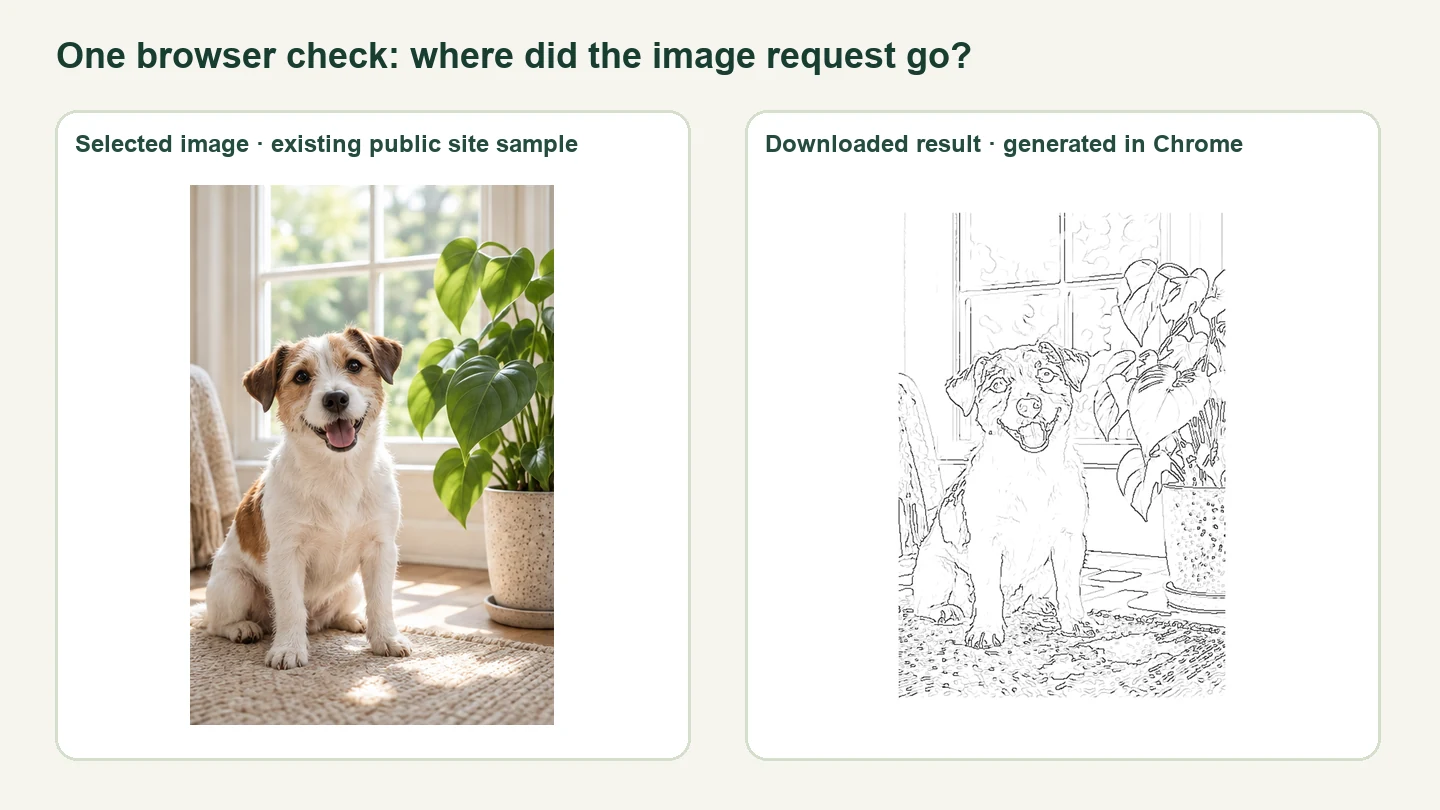
How we checked the browser requests
On October 27, 2026, we opened the live Coloring Page Maker homepage in Google Chrome using a 390 CSS-pixel viewport. This was an automated browser run, not a physical phone test. We waited for the homepage to reach network idle, then started recording browser requests before selecting the existing dog-sample-photo.png asset. The sample is 726,504 bytes and its SHA-256 is cfdc968b15b19cd238e2efc3c12b2c9af21b1adb1b2355bf3b4d6ee997e39056. Because this image is already publicly hosted by the site, it is not evidence involving a private image from a user.
We selected that file using the page’s photo input, waited until the filename appeared in the tool, clicked Make, waited for the result and saved the actual PNG download. The observer recorded each request’s URL, HTTP method, resource type and body length. It did not record image pixels or a user’s private content. The complete trace after selection is linked in the machine-readable record.
The observer saw two new browser requests after selection. Both URLs began with blob:https://coloringpagefromphoto.com/, and both were categorized as images. A blob URL is a browser-local reference created by the page; it is not an HTTP address fetched from a website. The trace recorded no HTTP request after selection, no POST and no non-empty request body through generation and download. It recorded 18 earlier requests while the homepage and its resources loaded, before the test window began; this check did not classify those initial requests.
The saved result was named coloring-page-300dpi.png, measured 3,034,778 bytes, and had SHA-256 6b4f36507980653c94c7cbf42c15bf5862a0001da444936e6ed3a8ba76476ef3. The current production app.js fingerprint was fb728a912378c8e7350a98bbbe3b656a5da1c96955411e3c3ec9e83b30dea13c. We recorded these values so the observation is tied to this exact app file and run rather than presented as a permanent guarantee.
| Observed window | Requests | Finding |
|---|---|---|
| After choosing the sample, before generation | 1 | Browser-local blob image reference |
| After Make, before/through download | 1 | Browser-local blob image reference |
| HTTP requests after selection | 0 | No HTTP upload request observed |
| POST requests / request bodies | 0 / 0 | None observed in this window |
The production JavaScript also shows the local processing path: it decodes the chosen File with createImageBitmap, draws the image to a canvas, and exports a PNG through canvas.toBlob and a browser-created object URL. The app file is available at /app.js for inspection. In this observed flow, the browser created the preview and download without sending an HTTP upload request after file selection.
This test has limits. The selected picture was the site’s already-public sample; we did not use a private photo. We tested one current Chrome run and one app fingerprint. We did not test other browsers, extensions, antivirus or operating-system monitoring, future code versions, or every request made while the homepage initially loaded. We did not claim that any site can inspect what unrelated software on a device might do. For sensitive photos, check the current Privacy Policy, use a browser and extensions you trust, and save the output locally.
To repeat the check, open Developer Tools before choosing an image, clear the Network list, enable “Preserve log,” choose a local file, then press Make and download the result. Review request methods and destinations while the conversion runs. Browser panels differ, so this is a practical inspection—not a formal security audit.
How the three reference tools describe their workflows
We reviewed the official pages in a fixed order on October 27. Mimi Panda’s photo converter page lists supported formats and style choices and describes saved creations with an account. iColoring’s homepage links image, text and bulk generators and says works can synchronize in the cloud. Canva’s generator page describes uploading a photo, editing the resulting page in Canva, and downloading a PDF or PNG; it also links to its privacy policy. These are descriptions on the vendors’ pages, not tests of what happens to an uploaded file. We did not submit a photo to any competitor.
The useful distinction is what evidence a page provides. A product description can explain the intended workflow; an observed browser request trace shows only what happened in one specific run. Neither should be expanded into a claim about every device or every version. This page provides the narrow trace for this site and leaves the scope visible.
Read the complete English video walkthrough or watch on YouTube, browse more Maker Help & Guides, or open the site privacy page.
Sources and limits
- Current Photo Maker JavaScript; SHA-256 fb728a912378c8e7350a98bbbe3b656a5da1c96955411e3c3ec9e83b30dea13c.
- Chrome request trace and input/output fingerprints.
- Official pages reviewed October 27, 2026: Mimi Panda photo converter, iColoring, and Canva generator.
- Competitor page publication dates and Google indexing evidence: unknown. Search volume and ranking data were not used.